Setting Up the Ultimate AI Workstation with NVIDIA RTX A6000 48GB: A Complete Guide
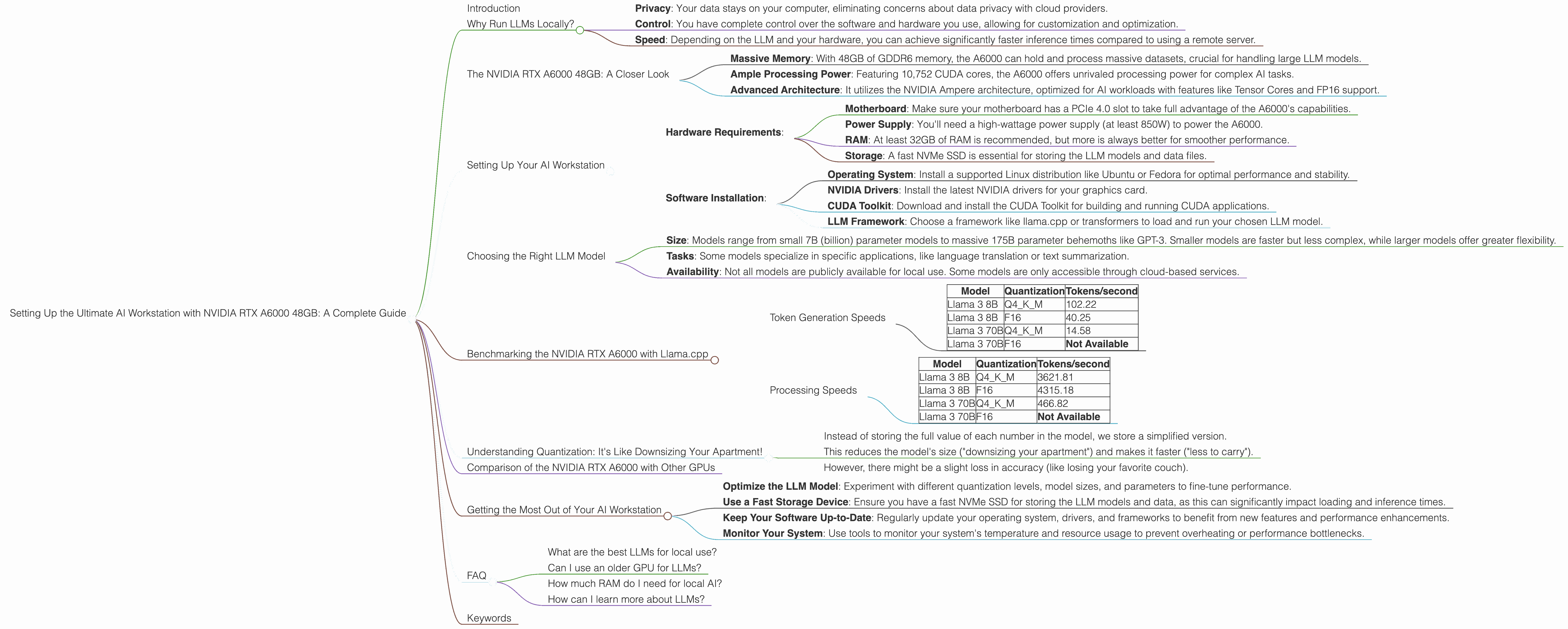
Introduction
Welcome, fellow AI enthusiasts, to the world of local Large Language Models (LLMs)! You've probably heard the hype surrounding these powerful AI systems capable of generating human-like text, translating languages, writing different kinds of creative content, and even answering your questions in an informative way. But what if I told you that you can run these models right on your own computer?
That's where the NVIDIA RTX A6000 48GB comes in. This beastly graphics card is a true powerhouse designed for professional workloads, including AI development and training. In this guide, we'll explore how to set up the ultimate AI workstation with this GPU, dive into its performance for various LLM models, and discuss the benefits of running LLMs locally.
Why Run LLMs Locally?
Running LLMs locally offers several advantages over using cloud-based services:
- Privacy: Your data stays on your computer, eliminating concerns about data privacy with cloud providers.
- Control: You have complete control over the software and hardware you use, allowing for customization and optimization.
- Speed: Depending on the LLM and your hardware, you can achieve significantly faster inference times compared to using a remote server.
The NVIDIA RTX A6000 48GB: A Closer Look
The NVIDIA RTX A6000 is a high-end graphics card designed for demanding workloads like AI training and inference. Here's a glimpse of its capabilities:
- Massive Memory: With 48GB of GDDR6 memory, the A6000 can hold and process massive datasets, crucial for handling large LLM models.
- Ample Processing Power: Featuring 10,752 CUDA cores, the A6000 offers unrivaled processing power for complex AI tasks.
- Advanced Architecture: It utilizes the NVIDIA Ampere architecture, optimized for AI workloads with features like Tensor Cores and FP16 support.
Setting Up Your AI Workstation
Here's a step-by-step guide to setting up your AI workstation with the NVIDIA RTX A6000 48GB:
- Hardware Requirements:
- Motherboard: Make sure your motherboard has a PCIe 4.0 slot to take full advantage of the A6000's capabilities.
- Power Supply: You'll need a high-wattage power supply (at least 850W) to power the A6000.
- RAM: At least 32GB of RAM is recommended, but more is always better for smoother performance.
- Storage: A fast NVMe SSD is essential for storing the LLM models and data files.
- Software Installation:
- Operating System: Install a supported Linux distribution like Ubuntu or Fedora for optimal performance and stability.
- NVIDIA Drivers: Install the latest NVIDIA drivers for your graphics card.
- CUDA Toolkit: Download and install the CUDA Toolkit for building and running CUDA applications.
- LLM Framework: Choose a framework like llama.cpp or transformers to load and run your chosen LLM model.
Choosing the Right LLM Model
Selecting the right LLM model for your needs is crucial. LLMs differ in:
- Size: Models range from small 7B (billion) parameter models to massive 175B parameter behemoths like GPT-3. Smaller models are faster but less complex, while larger models offer greater flexibility.
- Tasks: Some models specialize in specific applications, like language translation or text summarization.
- Availability: Not all models are publicly available for local use. Some models are only accessible through cloud-based services.
Benchmarking the NVIDIA RTX A6000 with Llama.cpp
Let's dive into the real-world performance of the NVIDIA RTX A6000 48GB with the popular llama.cpp framework. We'll focus on two Llama models:
- Llama 3 8B: A moderately sized model with 8 billion parameters.
- Llama 3 70B: A larger model with 70 billion parameters.
We'll test both models using different quantization levels:
- Q4KM: A compression technique that reduces the model size without significantly affecting accuracy.
- F16: A faster quantization method that uses 16-bit precision.
Token Generation Speeds
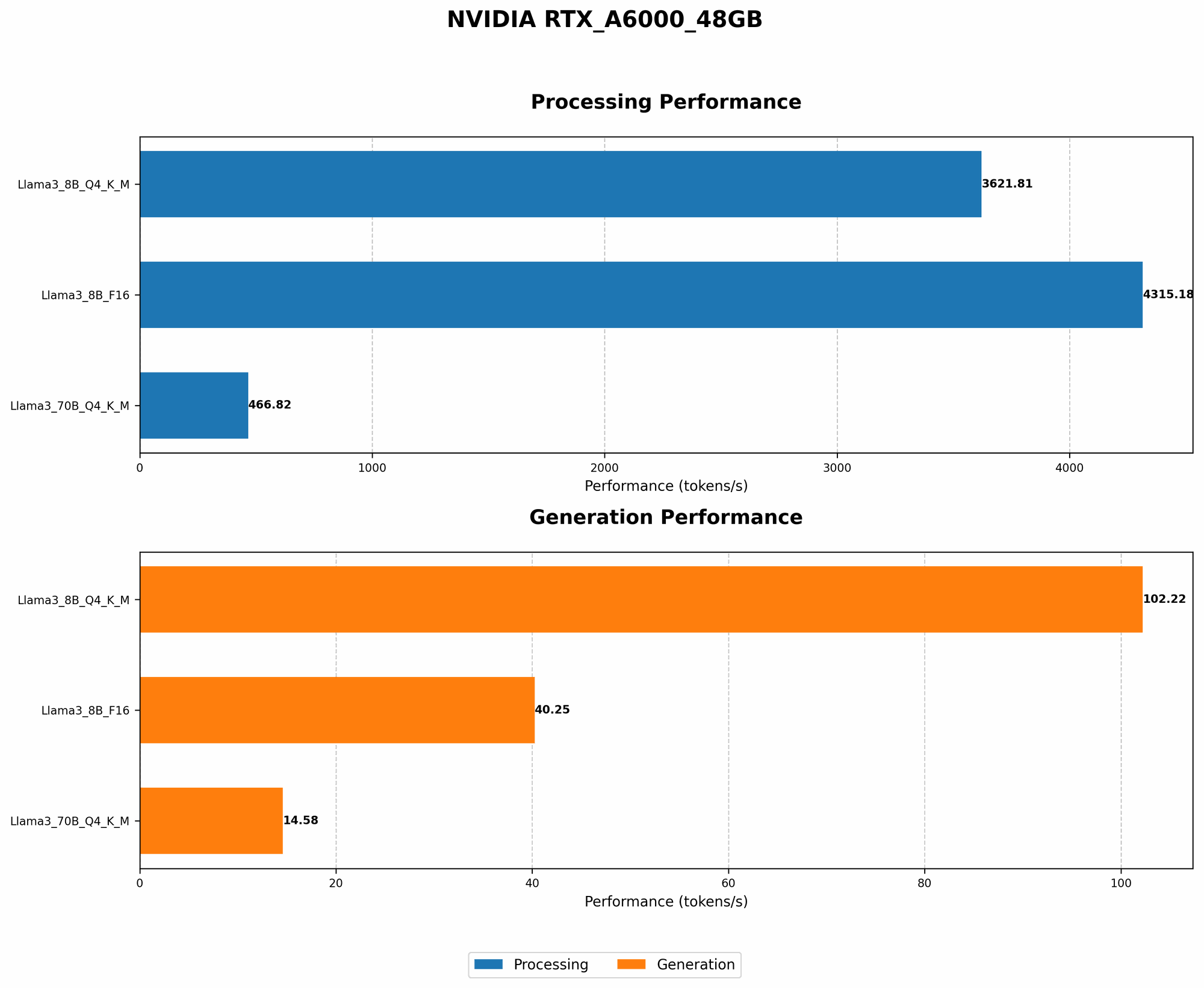
The table below shows the token generation speed in tokens/second for various combinations of LLM models and quantization levels on the NVIDIA RTX A6000:
| Model | Quantization | Tokens/second |
|---|---|---|
| Llama 3 8B | Q4KM | 102.22 |
| Llama 3 8B | F16 | 40.25 |
| Llama 3 70B | Q4KM | 14.58 |
| Llama 3 70B | F16 | Not Available |
Observations:
- The NVIDIA RTX A6000 excels at handling the Llama 3 8B model, achieving impressive token generation speeds with both Q4KM and F16 quantization.
- The performance with the Llama 3 70B model is lower due to the larger size of the model. However, the Q4KM quantization still delivers respectable token generation speeds.
- The F16 quantization for the Llama 3 70B model is not available yet, but could potentially yield significant performance gains if implemented.
Processing Speeds
The table below showcases the processing speed in tokens/second for different LLM models and quantization levels on the NVIDIA RTX A6000:
| Model | Quantization | Tokens/second |
|---|---|---|
| Llama 3 8B | Q4KM | 3621.81 |
| Llama 3 8B | F16 | 4315.18 |
| Llama 3 70B | Q4KM | 466.82 |
| Llama 3 70B | F16 | Not Available |
Observations:
- The RTX A6000 shows remarkable processing speeds, particularly with the Llama 3 8B model. The F16 quantization even surpasses the Q4KM in this scenario.
- While the processing speed for the Llama 3 70B is lower, the Q4KM quantization still delivers a compelling performance.
- The lack of F16 quantization for the Llama 3 70B model leaves room for improvement and potential performance enhancements in the future.
Understanding Quantization: It's Like Downsizing Your Apartment!
Imagine you're moving to a smaller apartment. You can't bring everything with you, so you need to get rid of some stuff. Quantization works similarly with LLMs:
- Instead of storing the full value of each number in the model, we store a simplified version.
- This reduces the model's size ("downsizing your apartment") and makes it faster ("less to carry").
- However, there might be a slight loss in accuracy (like losing your favorite couch).
Comparison of the NVIDIA RTX A6000 with Other GPUs
While the NVIDIA RTX A6000 is a powerful choice, other GPUs are also available for running LLMs locally. However, for the sake of this article, we're focused on the A6000 and its specific capabilities.
Getting the Most Out of Your AI Workstation
Here are some tips to maximize your AI workstation's performance:
- Optimize the LLM Model: Experiment with different quantization levels, model sizes, and parameters to fine-tune performance.
- Use a Fast Storage Device: Ensure you have a fast NVMe SSD for storing the LLM models and data, as this can significantly impact loading and inference times.
- Keep Your Software Up-to-Date: Regularly update your operating system, drivers, and frameworks to benefit from new features and performance enhancements.
- Monitor Your System: Use tools to monitor your system's temperature and resource usage to prevent overheating or performance bottlenecks.
FAQ
What are the best LLMs for local use?
LLMs like Llama 3, StableLM, and GPT-J are popular choices for local use. However, the best LLM for you will depend on your specific needs and resources.
Can I use an older GPU for LLMs?
You can try, but older GPUs might struggle to handle larger LLMs or may require significant quantization for a decent speed.
How much RAM do I need for local AI?
It's highly recommended to have at least 32GB of RAM, but more is always better, especially for larger models.
How can I learn more about LLMs?
Explore communities like Hugging Face, Papers With Code, and the llama.cpp GitHub repository to learn more about LLMs and their applications.
Keywords
NVIDIA RTX A6000, AI Workstation, LLMs, llama.cpp, Llama 3, Token Generation, Processing Speed, Quantization, Q4KM, F16, Performance Benchmark, GPU, CUDA, AI