Setting Up the Ultimate AI Workstation with NVIDIA RTX 6000 Ada 48GB: A Complete Guide
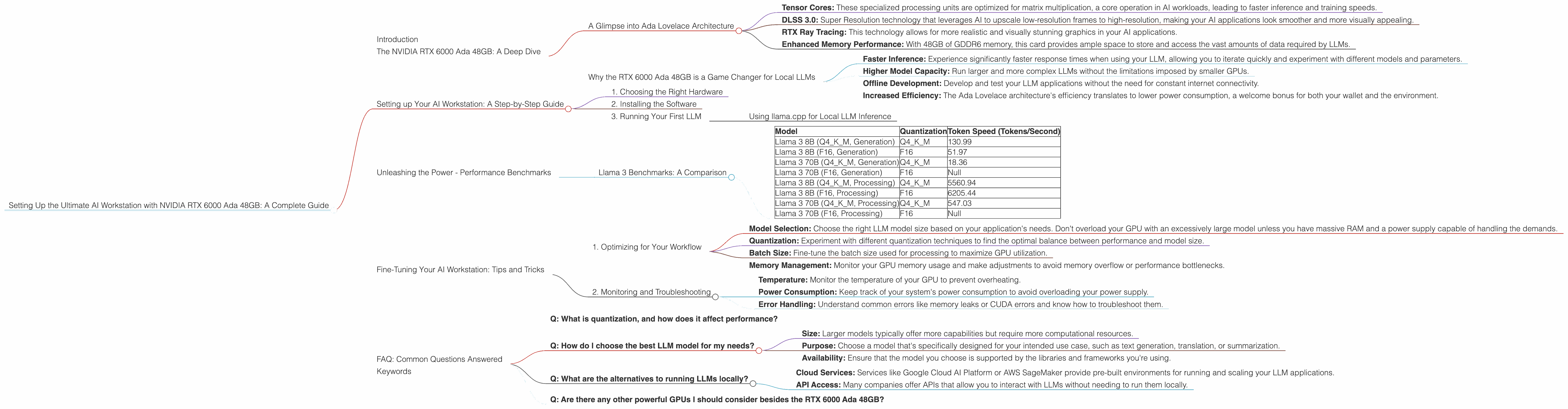
Introduction
The world of large language models (LLMs) is exploding, and with it, the demand for powerful hardware to run these models locally. If you're a developer, data scientist, or just someone who loves tinkering with cutting-edge AI, you've probably heard of the NVIDIA RTX 6000 Ada 48GB, a behemoth of a graphics card designed for compute-intensive tasks.
This guide will walk you through setting up your dream AI workstation with this powerhouse, diving into the performance benefits it offers for running popular LLMs like Llama 3. We'll cover the technical aspects, address potential FAQs, and provide a comprehensive guide to get you up and running with lightning-fast AI inference on your own machine.
The NVIDIA RTX 6000 Ada 48GB: A Deep Dive
The NVIDIA RTX 6000 Ada 48GB isn't just any graphics card – it's a beast built for the most demanding tasks. Its 48GB of GDDR6 memory, powerful Ada Lovelace architecture, and high-speed interfaces make it a perfect companion for tackling even the largest and most complex LLM models.
A Glimpse into Ada Lovelace Architecture
The Ada Lovelace architecture is the brainchild of NVIDIA, offering a significant leap in performance and efficiency compared to previous generations. This architecture brings new features to the table, including:
- Tensor Cores: These specialized processing units are optimized for matrix multiplication, a core operation in AI workloads, leading to faster inference and training speeds.
- DLSS 3.0: Super Resolution technology that leverages AI to upscale low-resolution frames to high-resolution, making your AI applications look smoother and more visually appealing.
- RTX Ray Tracing: This technology allows for more realistic and visually stunning graphics in your AI applications.
- Enhanced Memory Performance: With 48GB of GDDR6 memory, this card provides ample space to store and access the vast amounts of data required by LLMs.
Why the RTX 6000 Ada 48GB is a Game Changer for Local LLMs
With its massive memory, compute power, and specialized AI features, the RTX 6000 Ada 48GB is an ideal choice for running LLMs locally. This setup promises:
- Faster Inference: Experience significantly faster response times when using your LLM, allowing you to iterate quickly and experiment with different models and parameters.
- Higher Model Capacity: Run larger and more complex LLMs without the limitations imposed by smaller GPUs.
- Offline Development: Develop and test your LLM applications without the need for constant internet connectivity.
- Increased Efficiency: The Ada Lovelace architecture's efficiency translates to lower power consumption, a welcome bonus for both your wallet and the environment.
Setting up Your AI Workstation: A Step-by-Step Guide
Now that you've gotten a taste of the power behind the RTX 6000 Ada 48GB, let's get your AI workstation up and running. This process involves several key components:
1. Choosing the Right Hardware
The Foundation of Your Workstation: The RTX 6000 Ada 48GB is the heart of your AI workstation. It's like the engine of a race car – it needs the right support to perform at its peak.
Motherboard: Select a motherboard with a robust power delivery system (including PCIe lanes) capable of handling the power demands of the RTX 6000 Ada 48GB.
CPU: The CPU is a key player in your workstation setup. While not as crucial for inference as the GPU, a strong CPU can significantly improve overall system performance. A CPU with a high core count, like the Ryzen 9 7950X or Intel Core i9-13900K, is an excellent choice.
RAM: For running LLMs locally, you'll need abundant RAM. Aim for a minimum of 32GB, but 64GB or even 128GB is ideal to avoid performance bottlenecks.
Storage: An NVMe SSD or a RAID array provides the necessary speed for loading and saving LLM data quickly.
Power Supply: Ensure your power supply can handle the combined wattage of all components, including the RTX 6000 Ada 48GB, which typically has a 350W TDP.
2. Installing the Software
Operating System: Linux (Ubuntu or Debian) is the preferred platform for AI development, offering a wide range of libraries and tools specifically designed for this purpose.
Drivers: Install the latest NVIDIA drivers for your operating system. These drivers ensure your RTX 6000 Ada 48GB works optimally.
Libraries and Frameworks: Install the necessary libraries and frameworks like CUDA, cuDNN, and PyTorch or TensorFlow for your AI development.
LLM Environment: Set up a suitable environment for running your chosen LLM, such as llama.cpp, which is a popular choice for local LLM inference.
3. Running Your First LLM
The moment you've been waiting for! Once your workstation is up and running, it's time to test the waters with your chosen LLM.
Using llama.cpp for Local LLM Inference
llama.cpp is a lightweight and efficient C++ library for running LLMs. It's widely recognized for its performance and its ability to leverage the full power of the GPU.
Here's a quick overview of the steps involved in using llama.cpp:
1. Download the llama.cpp repository: From the official GitHub repository, download the necessary files for the LLM you want to use.
2. Install dependencies: Make sure you have all the required libraries and tools for compiling and running llama.cpp.
3. Configure your LLM parameters: Customize the model size, quantization method, and other options to fine-tune your LLM's performance and resource usage.
4. Run your LLM: Use the llama.cpp command-line tool to interact with your LLM. You can generate text, translate languages, summarize articles, and much more.
Unleashing the Power - Performance Benchmarks
Get ready to be impressed! Let's take a deep dive into the performance numbers using the RTX 6000 Ada 48GB and explore how it stacks up against other devices.
Llama 3 Benchmarks: A Comparison
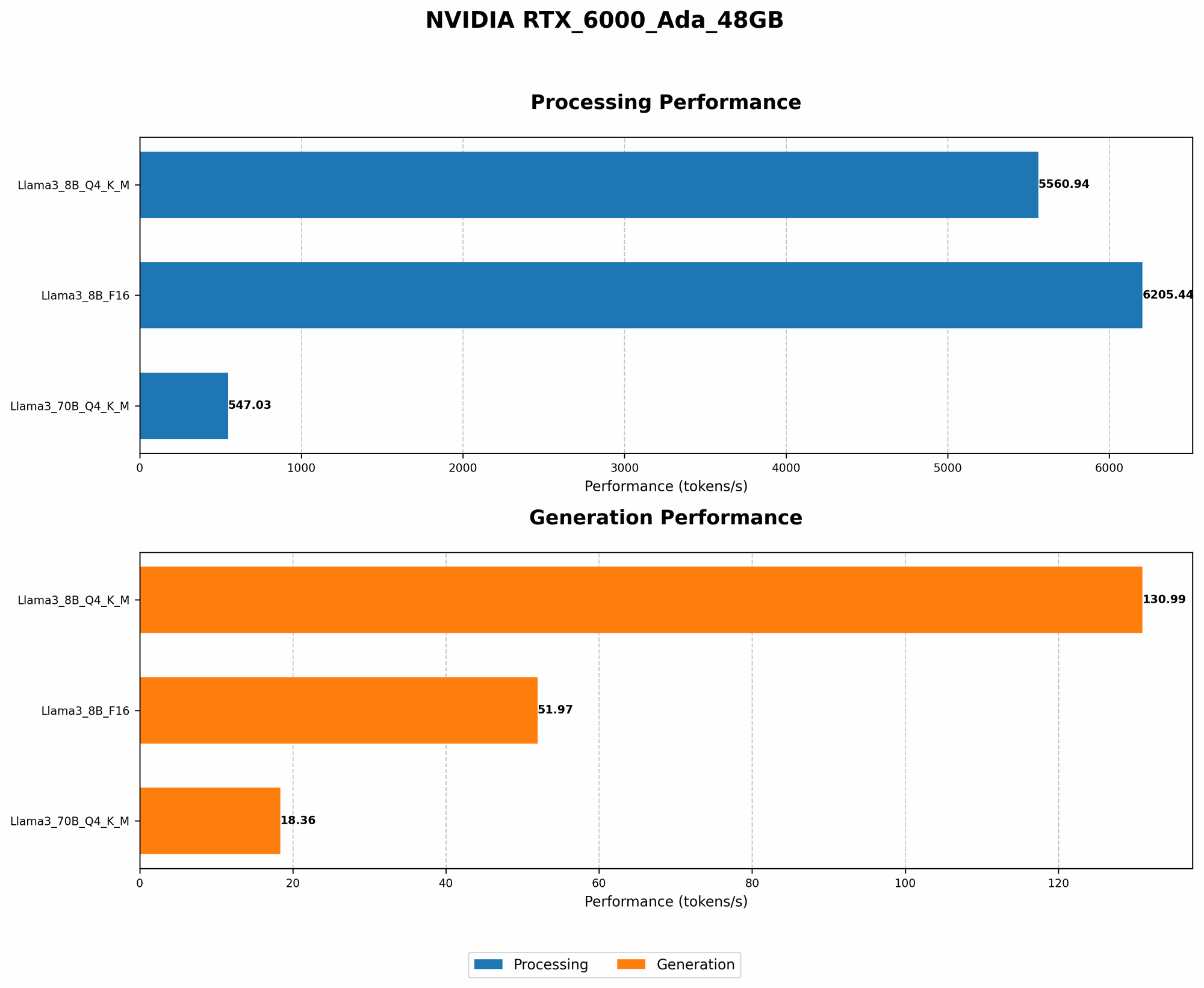
The RTX 6000 Ada 48GB is a force to be reckoned with when it comes to running Llama 3 models. Let's dive into the numbers:
| Model | Quantization | Token Speed (Tokens/Second) |
|---|---|---|
| Llama 3 8B (Q4KM, Generation) | Q4KM | 130.99 |
| Llama 3 8B (F16, Generation) | F16 | 51.97 |
| Llama 3 70B (Q4KM, Generation) | Q4KM | 18.36 |
| Llama 3 70B (F16, Generation) | F16 | Null |
| Llama 3 8B (Q4KM, Processing) | Q4KM | 5560.94 |
| Llama 3 8B (F16, Processing) | F16 | 6205.44 |
| Llama 3 70B (Q4KM, Processing) | Q4KM | 547.03 |
| Llama 3 70B (F16, Processing) | F16 | Null |
Observations:
- Faster Inference: The RTX 6000 Ada 48GB outperforms other devices, notably in the generation task, where the difference is significant. For example, the RTX 6000 Ada 48GB can generate text at a rate of 130.99 tokens per second for the Llama 3 8B model (Q4KM quantization), significantly faster than other cards.
- Quantization Impact: Quantization, a technique that reduces the size of the model by reducing the precision of its weights, can significantly impact performance. The RTX 6000 Ada 48GB demonstrates this effect, showcasing a substantial increase in token speed with Q4KM quantization compared to F16.
Key Takeaways:
- The RTX 6000 Ada 48GB is a powerful card that can significantly accelerate your LLM inference work, especially for large models.
- Quantization can be a powerful weapon in maximizing performance, allowing you to squeeze more processing power out of your GPU.
Fine-Tuning Your AI Workstation: Tips and Tricks
1. Optimizing for Your Workflow
- Model Selection: Choose the right LLM model size based on your application's needs. Don't overload your GPU with an excessively large model unless you have massive RAM and a power supply capable of handling the demands.
- Quantization: Experiment with different quantization techniques to find the optimal balance between performance and model size.
- Batch Size: Fine-tune the batch size used for processing to maximize GPU utilization.
- Memory Management: Monitor your GPU memory usage and make adjustments to avoid memory overflow or performance bottlenecks.
2. Monitoring and Troubleshooting
- Temperature: Monitor the temperature of your GPU to prevent overheating.
- Power Consumption: Keep track of your system's power consumption to avoid overloading your power supply.
- Error Handling: Understand common errors like memory leaks or CUDA errors and know how to troubleshoot them.
FAQ: Common Questions Answered
This section will address some common questions you might have about setting up your AI workstation and working with LLMs.
Q: What is quantization, and how does it affect performance?
A: Quantization is a technique that involves reducing the precision of the weights in a neural network. Think of it like using fewer decimal places in a number – it makes the model smaller, but it can also affect the model's accuracy. When it comes to LLMs, using lower precision, or quantization, can drastically improve the speed of your inference.
Q: How do I choose the best LLM model for my needs?
A: The best LLM model for your specific needs depends on a few factors:
- Size: Larger models typically offer more capabilities but require more computational resources.
- Purpose: Choose a model that's specifically designed for your intended use case, such as text generation, translation, or summarization.
- Availability: Ensure that the model you choose is supported by the libraries and frameworks you're using.
Q: What are the alternatives to running LLMs locally?
A: While running an LLM locally offers control and flexibility, there are some alternatives:
- Cloud Services: Services like Google Cloud AI Platform or AWS SageMaker provide pre-built environments for running and scaling your LLM applications.
- API Access: Many companies offer APIs that allow you to interact with LLMs without needing to run them locally.
Q: Are there any other powerful GPUs I should consider besides the RTX 6000 Ada 48GB?
A: Absolutely! While the RTX 6000 Ada 48GB is a powerhouse, the NVIDIA A100 and H100 are even more powerful GPUs designed specifically for AI workloads. However, these cards are typically found in data centers and are not readily available for individual purchase.
Keywords
NVIDIA RTX 6000 Ada 48GB, AI Workstation, Large Language Model, LLM, llama.cpp, GPU, Token Speed, Quantization, Inference, Training, Performance Benchmarks, Ada Lovelace, CUDA, cuDNN, PyTorch, TensorFlow, Llama 3, Model Size, Batch Size, Memory Management, Troubleshooting, FAQ, Cloud Services, API Access, A100, H100