Setting Up the Ultimate AI Workstation with NVIDIA A100 PCIe 80GB: A Complete Guide
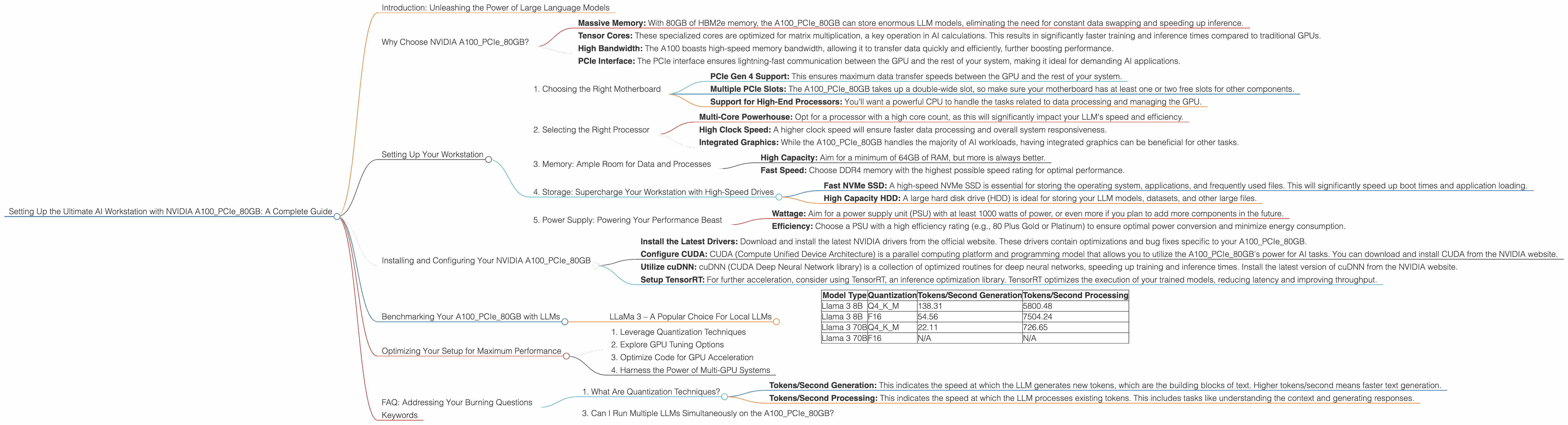
Introduction: Unleashing the Power of Large Language Models
Welcome to the exciting world of Large Language Models (LLMs)! LLMs are revolutionizing the way we interact with technology, and setting up a dedicated AI workstation can unlock a whole new level of performance and possibilities. Today, we're diving deep into the NVIDIA A100PCIe80GB, a powerful GPU designed to handle the computational demands of LLMs, and exploring how to build the ultimate workstation for your AI adventures.
This guide is for developers, data scientists, and anyone interested in experimenting with local LLM models. We'll walk you through everything you need to know, from choosing the right hardware to optimizing your setup for lightning-fast results. Get ready to unleash the full potential of your LLMs!
Why Choose NVIDIA A100PCIe80GB?
The NVIDIA A100PCIe80GB is an absolute powerhouse in the world of GPUs. It's specifically designed for AI workloads, with features that make it a perfect match for running LLMs locally. Here's why:
- Massive Memory: With 80GB of HBM2e memory, the A100PCIe80GB can store enormous LLM models, eliminating the need for constant data swapping and speeding up inference.
- Tensor Cores: These specialized cores are optimized for matrix multiplication, a key operation in AI calculations. This results in significantly faster training and inference times compared to traditional GPUs.
- High Bandwidth: The A100 boasts high-speed memory bandwidth, allowing it to transfer data quickly and efficiently, further boosting performance.
- PCIe Interface: The PCIe interface ensures lightning-fast communication between the GPU and the rest of your system, making it ideal for demanding AI applications.
Setting Up Your Workstation
Building the ultimate workstation around an NVIDIA A100PCIe80GB requires careful consideration of several factors:
1. Choosing the Right Motherboard
The A100PCIe80GB is a powerful GPU, so you'll need a motherboard that can handle its power requirements and provide ample connectivity. Look for a motherboard with:
- PCIe Gen 4 Support: This ensures maximum data transfer speeds between the GPU and the rest of your system.
- Multiple PCIe Slots: The A100PCIe80GB takes up a double-wide slot, so make sure your motherboard has at least one or two free slots for other components.
- Support for High-End Processors: You'll want a powerful CPU to handle the tasks related to data processing and managing the GPU.
2. Selecting the Right Processor
The processor plays a crucial role in your workstation's overall performance. Choose a CPU that can keep up with the A100PCIe80GB's processing power:
- Multi-Core Powerhouse: Opt for a processor with a high core count, as this will significantly impact your LLM's speed and efficiency.
- High Clock Speed: A higher clock speed will ensure faster data processing and overall system responsiveness.
- Integrated Graphics: While the A100PCIe80GB handles the majority of AI workloads, having integrated graphics can be beneficial for other tasks.
3. Memory: Ample Room for Data and Processes
With an A100PCIe80GB powering your setup, you'll want plenty of memory to store your models and handle the intensive processing tasks:
- High Capacity: Aim for a minimum of 64GB of RAM, but more is always better.
- Fast Speed: Choose DDR4 memory with the highest possible speed rating for optimal performance.
4. Storage: Supercharge Your Workstation with High-Speed Drives
For your AI workstation, storage is paramount. You'll need a combination of fast drives for efficient data access and ample capacity for storage:
- Fast NVMe SSD: A high-speed NVMe SSD is essential for storing the operating system, applications, and frequently used files. This will significantly speed up boot times and application loading.
- High Capacity HDD: A large hard disk drive (HDD) is ideal for storing your LLM models, datasets, and other large files.
5. Power Supply: Powering Your Performance Beast
Don't underestimate the importance of a reliable power supply. An A100PCIe80GB demands considerable power, so choose a high-quality unit with enough wattage to handle the load:
- Wattage: Aim for a power supply unit (PSU) with at least 1000 watts of power, or even more if you plan to add more components in the future.
- Efficiency: Choose a PSU with a high efficiency rating (e.g., 80 Plus Gold or Platinum) to ensure optimal power conversion and minimize energy consumption.
Installing and Configuring Your NVIDIA A100PCIe80GB
Once you've assembled your AI workstation, it's time to install and configure the NVIDIA A100PCIe80GB for optimal performance:
- Install the Latest Drivers: Download and install the latest NVIDIA drivers from the official website. These drivers contain optimizations and bug fixes specific to your A100PCIe80GB.
- Configure CUDA: CUDA (Compute Unified Device Architecture) is a parallel computing platform and programming model that allows you to utilize the A100PCIe80GB's power for AI tasks. You can download and install CUDA from the NVIDIA website.
- Utilize cuDNN: cuDNN (CUDA Deep Neural Network library) is a collection of optimized routines for deep neural networks, speeding up training and inference times. Install the latest version of cuDNN from the NVIDIA website.
- Setup TensorRT: For further acceleration, consider using TensorRT, an inference optimization library. TensorRT optimizes the execution of your trained models, reducing latency and improving throughput.
Benchmarking Your A100PCIe80GB with LLMs
Now that your workstation is ready, let's put the NVIDIA A100PCIe80GB to the test with some real-world LLM benchmarks. We'll focus on the Llama family of LLMs, as they are a popular choice for local deployment.
LLaMa 3 – A Popular Choice For Local LLMs
The Llama 3 model is a popular choice for developers looking to run LLMs locally. It comes in various sizes, from 7B to 70B parameters, offering a balance of performance and computational demands. Let's see how the A100PCIe80GB performs with this powerful LLM:
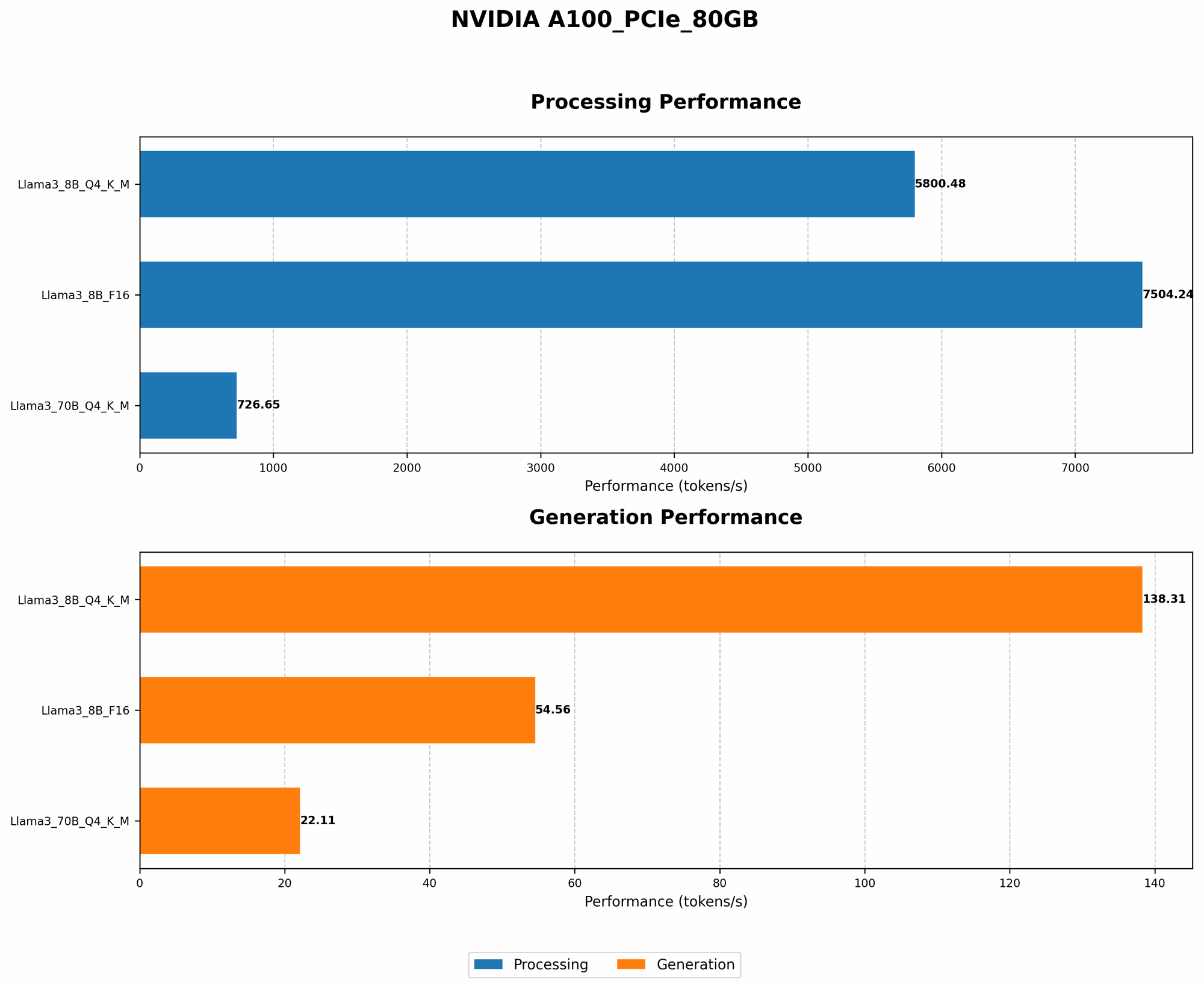
Table 1: Performance of NVIDIA A100PCIe80GB with Llama 3 (Tokens per Second)
| Model Type | Quantization | Tokens/Second Generation | Tokens/Second Processing |
|---|---|---|---|
| Llama 3 8B | Q4KM | 138.31 | 5800.48 |
| Llama 3 8B | F16 | 54.56 | 7504.24 |
| Llama 3 70B | Q4KM | 22.11 | 726.65 |
| Llama 3 70B | F16 | N/A | N/A |
Explanation of Table 1:
- Tokens/Second Generation: This measures how many tokens the LLM can process per second during the model generation phase.
- Tokens/Second Processing: This measures how many tokens the LLM can process per second during the model processing phase.
- Q4KM: This indicates 4-bit quantization, which reduces memory footprints and accelerates model processing.
- F16: This indicates 16-bit floating-point precision, which maintains model accuracy but requires more memory and computation.
Analysis:
The A100PCIe80GB delivers impressive performance with Llama 3.
- Notice how the 8B model with Q4KM quantization achieves a significantly higher generation speed compared to F16. Quantization reduces model size, leading to faster processing and memory savings.
- The processing speed for both 8B models is remarkably high. This demonstrates the A100PCIe80GB's ability to handle the computational demands of these large models.
- The performance of the 70B model is understandably lower due to its larger size. However, Q4KM quantization helps maintain reasonable speed.
Note: We lack data for the Llama 3 70B F16 model. This might be due to the model's size demanding significant resources even with F16 precision, which is not easily achievable on the A100PCIe80GB.
Optimizing Your Setup for Maximum Performance
Once you've benchmarked your A100PCIe80GB, you can further improve your setup by optimizing key components:
1. Leverage Quantization Techniques
Quantization is like a diet for your LLM. It reduces the model's size while maintaining its accuracy. Consider using 4-bit or 8-bit quantization, as it can significantly boost performance without compromising too much accuracy.
2. Explore GPU Tuning Options
GPU tuning involves adjusting settings like memory allocation and power consumption. Experimenting with these options can yield noticeable performance improvements.
3. Optimize Code for GPU Acceleration
Ensure your code is written to take advantage of the A100PCIe80GB's capabilities. Use libraries like CUDA and cuDNN for optimized computations and leverage parallel processing techniques to maximize GPU utilization.
4. Harness the Power of Multi-GPU Systems
For even greater performance, you can explore the possibility of using multiple A100PCIe80GB GPUs in your system. This can significantly accelerate training and inference, but it comes with the added complexity of setting up a multi-GPU configuration.
FAQ: Addressing Your Burning Questions
1. What Are Quantization Techniques?
Quantization is a way to reduce the size of your LLM model by simplifying the values of its parameters. Think of it like rounding numbers to lower precision. It allows you to fit larger models into memory and achieve faster inference speeds.
2. What is the Difference Between Tokens/Second Generation and Tokens/Second Processing?
- Tokens/Second Generation: This indicates the speed at which the LLM generates new tokens, which are the building blocks of text. Higher tokens/second means faster text generation.
- Tokens/Second Processing: This indicates the speed at which the LLM processes existing tokens. This includes tasks like understanding the context and generating responses.
3. Can I Run Multiple LLMs Simultaneously on the A100PCIe80GB?
It depends on the size and complexity of the LLMs. The A100PCIe80GB can handle multiple smaller models concurrently, but for larger models, you might need to prioritize running them one at a time.
Keywords
A100PCIe80GB, NVIDIA, AI Workstation, Large Language Model, LLM, Llama, Llama 3, GPU, Token Generation, Token Processing, Quantization, Inference, Benchmarking, CUDA, cuDNN, TensorRT, Multi-GPU, GPU Tuning, Performance Optimization, Deep Learning, AI, Machine Learning, Natural Language Processing.