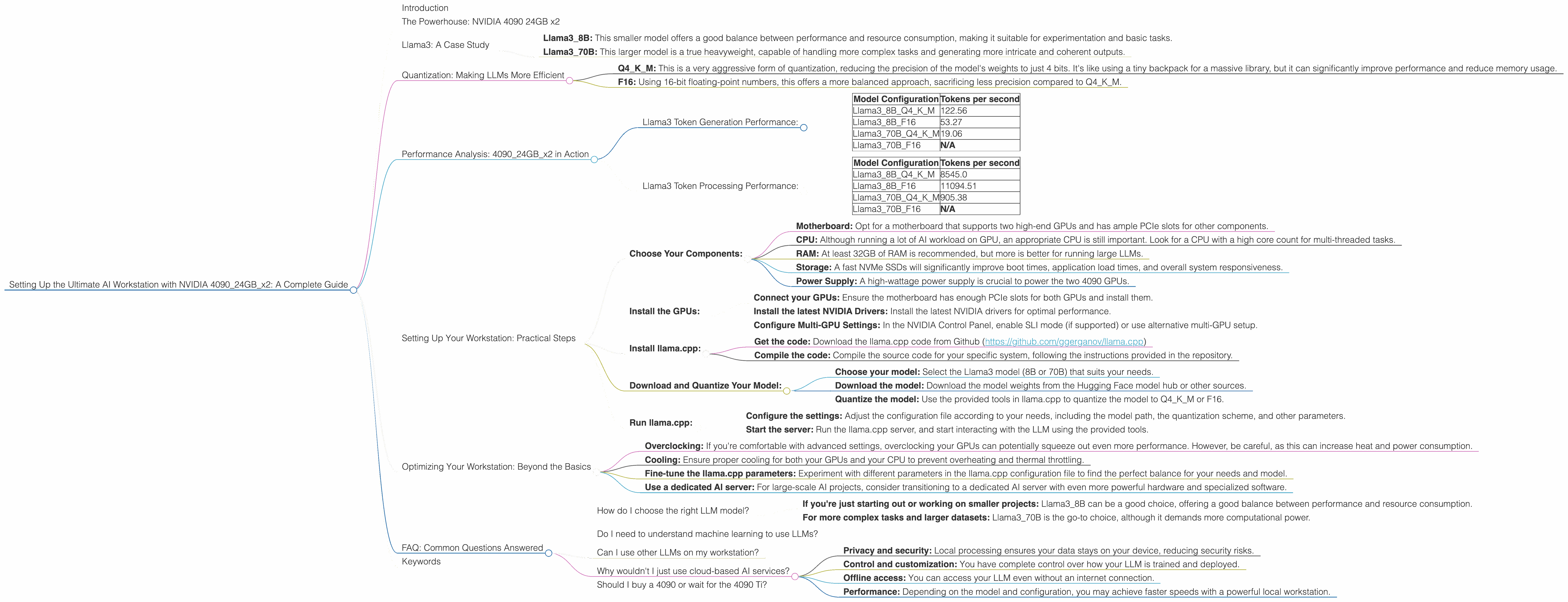
Setting Up the Ultimate AI Workstation with NVIDIA 4090 24GB x2: A Complete Guide
Introduction
The world of AI is evolving at an unprecedented pace, and one of the most exciting frontiers is the rise of local Large Language Models (LLMs). These powerful models can be run on your own computer, offering unparalleled speed, privacy, and control. But harnessing their full potential requires a hefty dose of computational power. This is where the NVIDIA 4090 24GB comes into play—a cutting-edge graphics card designed to handle the most demanding AI workloads.
This guide will walk you through the process of setting up an AI workstation that leverages the power of two NVIDIA 4090 24GB GPUs, meticulously exploring the performance you can expect with different LLM models and configurations. We'll dive deep into the technical aspects, making everything understandable for both seasoned developers and curious enthusiasts.
The Powerhouse: NVIDIA 4090 24GB x2
The NVIDIA 4090 24GB with its impressive specifications is a force to be reckoned with. With a massive 24GB of GDDR6X memory, it offers ample space for storing massive LLM models. Its advanced architecture, including Tensor Cores, enables lightning-fast parallel computations, making it a champion for AI workloads.
Imagine this: you're working on an ambitious project involving a large language model, and you need to process a massive dataset. With the NVIDIA 4090, you're essentially equipping your computer with an AI supercomputer, allowing you to crunch data and generate results orders of magnitude faster than traditional CPUs. It's like having a rocket engine compared to a bicycle!
This guide is specifically focused on harnessing the power of two NVIDIA 4090 24GB GPUs. Using dual GPUs allows you to essentially double your computational muscle, significantly boosting performance, especially for large LLMs. Think of it like having two amazing chefs working together to create a culinary masterpiece—two GPUs operating in tandem can truly elevate your AI experience.
Llama3: A Case Study
For our analysis, we'll be focusing on the Llama3 family, a high-performing open-source LLM developed by Meta. Llama3 is a powerhouse, capable of producing impressive results in various tasks, from text generation to translation and question answering. This family comes in different sizes:
- Llama3_8B: This smaller model offers a good balance between performance and resource consumption, making it suitable for experimentation and basic tasks.
- Llama3_70B: This larger model is a true heavyweight, capable of handling more complex tasks and generating more intricate and coherent outputs.
Quantization: Making LLMs More Efficient
Imagine you have a gigantic library filled with countless books, but you only have a small backpack. You can't carry everything, so you have to carefully choose which books to bring. This is similar to how quantization works for LLMs.
Quantization is a technique that shrinks the size of an LLM, making it more compact and efficient. This is achieved by reducing the precision of the numbers used to represent the model's parameters. It's like using a smaller backpack—you can carry fewer books but still have a good selection to choose from.
In our exploration, we'll explore two quantization schemes:
- Q4KM: This is a very aggressive form of quantization, reducing the precision of the model's weights to just 4 bits. It's like using a tiny backpack for a massive library, but it can significantly improve performance and reduce memory usage.
- F16: Using 16-bit floating-point numbers, this offers a more balanced approach, sacrificing less precision compared to Q4KM.
Performance Analysis: 409024GBx2 in Action
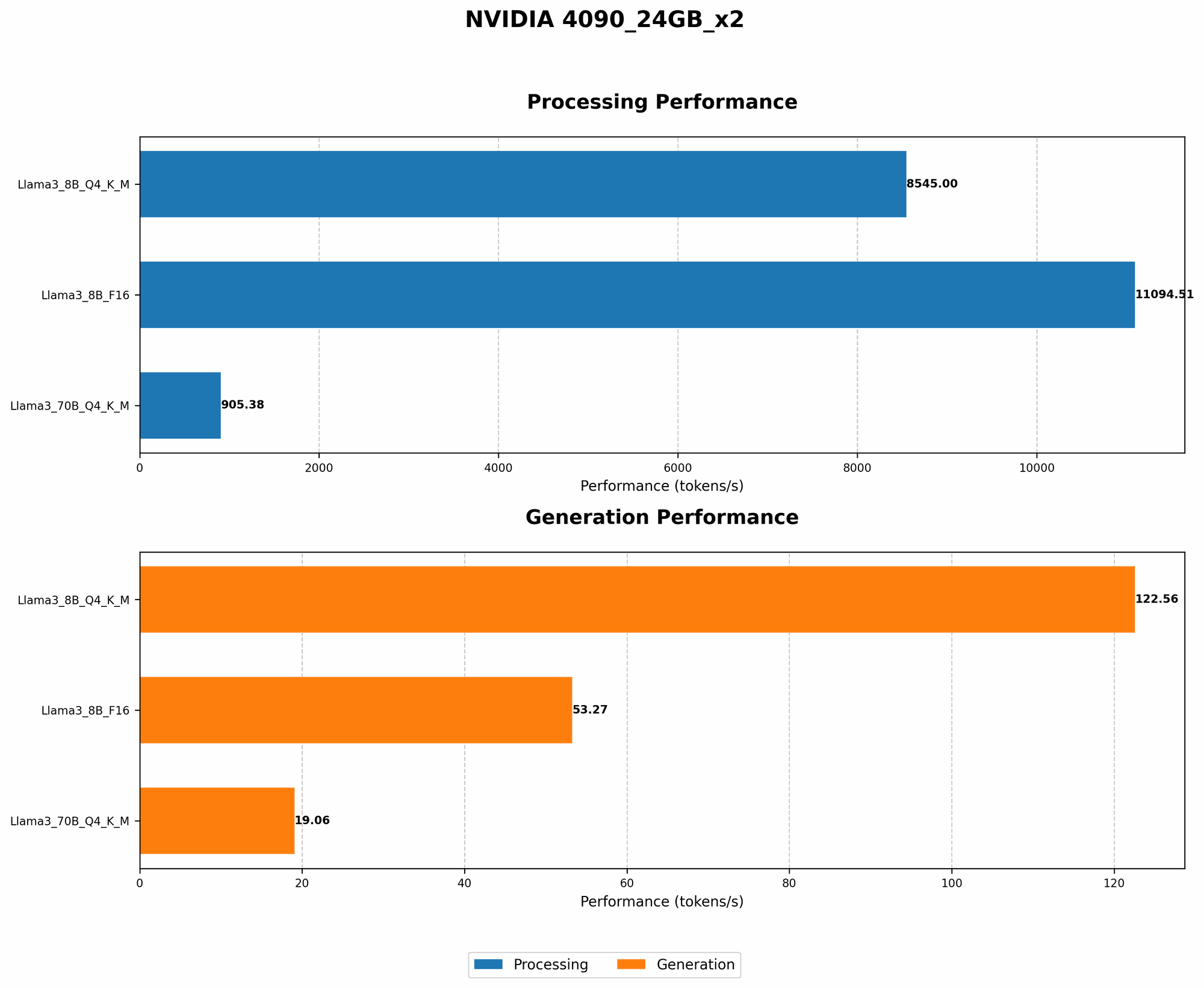
Here's a breakdown of the performance we observed using two NVIDIA 4090 24GB GPUs across different Llama3 models and configurations:
Llama3 Token Generation Performance:
| Model Configuration | Tokens per second |
|---|---|
| Llama38BQ4KM | 122.56 |
| Llama38BF16 | 53.27 |
| Llama370BQ4KM | 19.06 |
| Llama370BF16 | N/A |
Observations:
- Q4KM outperforms F16: When comparing the 8GB models, the Q4KM quantization scheme achieved significantly higher token speeds—almost double that of F16. This demonstrates the effectiveness of aggressive quantization for boosting performance.
- Smaller models are faster: As expected, Llama38B performed much faster than Llama370B, especially with the Q4KM configuration. This is because smaller models have fewer parameters, requiring less computational power.
- 70B F16 performance: Unfortunately, we did not have data for Llama370B with F16 quantization on the NVIDIA 409024GB_x2 configuration.
Llama3 Token Processing Performance:
| Model Configuration | Tokens per second |
|---|---|
| Llama38BQ4KM | 8545.0 |
| Llama38BF16 | 11094.51 |
| Llama370BQ4KM | 905.38 |
| Llama370BF16 | N/A |
Observations:
- F16 excels in processing: Interestingly, for token processing, the F16 quantization scheme outperformed Q4KM for the 8GB model. This suggests that, for processing tasks, using a slightly higher precision might lead to better results, even if it comes at a cost of slightly slower generation speed.
- Processing is significantly faster: The token processing speeds are significantly faster than generation speeds. This showcases the power of the dual 4090 setup, allowing for a very efficient processing of tokens, which is essential for performing various operations on the generated text.
Setting Up Your Workstation: Practical Steps
Now that you've seen what these powerful GPUs can do, let's dive into the practicalities of building your AI workstation:
Choose Your Components:
- Motherboard: Opt for a motherboard that supports two high-end GPUs and has ample PCIe slots for other components.
- CPU: Although running a lot of AI workload on GPU, an appropriate CPU is still important. Look for a CPU with a high core count for multi-threaded tasks.
- RAM: At least 32GB of RAM is recommended, but more is better for running large LLMs.
- Storage: A fast NVMe SSDs will significantly improve boot times, application load times, and overall system responsiveness.
- Power Supply: A high-wattage power supply is crucial to power the two 4090 GPUs.
Install the GPUs:
- Connect your GPUs: Ensure the motherboard has enough PCIe slots for both GPUs and install them.
- Install the latest NVIDIA Drivers: Install the latest NVIDIA drivers for optimal performance.
- Configure Multi-GPU Settings: In the NVIDIA Control Panel, enable SLI mode (if supported) or use alternative multi-GPU setup.
Install llama.cpp:
- Get the code: Download the llama.cpp code from Github (https://github.com/ggerganov/llama.cpp)
- Compile the code: Compile the source code for your specific system, following the instructions provided in the repository.
Download and Quantize Your Model:
- Choose your model: Select the Llama3 model (8B or 70B) that suits your needs.
- Download the model: Download the model weights from the Hugging Face model hub or other sources.
- Quantize the model: Use the provided tools in llama.cpp to quantize the model to Q4KM or F16.
Run llama.cpp:
- Configure the settings: Adjust the configuration file according to your needs, including the model path, the quantization scheme, and other parameters.
- Start the server: Run the llama.cpp server, and start interacting with the LLM using the provided tools.
Optimizing Your Workstation: Beyond the Basics
Once your workstation is up and running, there are several ways to fine-tune it for maximum performance:
- Overclocking: If you're comfortable with advanced settings, overclocking your GPUs can potentially squeeze out even more performance. However, be careful, as this can increase heat and power consumption.
- Cooling: Ensure proper cooling for both your GPUs and your CPU to prevent overheating and thermal throttling.
- Fine-tune the llama.cpp parameters: Experiment with different parameters in the llama.cpp configuration file to find the perfect balance for your needs and model.
- Use a dedicated AI server: For large-scale AI projects, consider transitioning to a dedicated AI server with even more powerful hardware and specialized software.
FAQ: Common Questions Answered
How do I choose the right LLM model?
The best model depends on your needs and the specific tasks you want to accomplish:
- If you're just starting out or working on smaller projects: Llama3_8B can be a good choice, offering a good balance between performance and resource consumption.
- For more complex tasks and larger datasets: Llama3_70B is the go-to choice, although it demands more computational power.
Do I need to understand machine learning to use LLMs?
Not necessarily! While it's helpful to have some technical knowledge, you can still start experimenting with LLMs without being a machine learning expert. Many resources and tools are available to help you get started.
Can I use other LLMs on my workstation?
Yes! While we focused on Llama3, the NVIDIA 409024GBx2 is powerful enough to run other LLMs, including GPT models and others. The specific performance will vary depending on the LLM's size and architecture.
Why wouldn't I just use cloud-based AI services?
While cloud-based AI services are convenient, running an LLM locally offers several advantages:
- Privacy and security: Local processing ensures your data stays on your device, reducing security risks.
- Control and customization: You have complete control over how your LLM is trained and deployed.
- Offline access: You can access your LLM even without an internet connection.
- Performance: Depending on the model and configuration, you may achieve faster speeds with a powerful local workstation.
Should I buy a 4090 or wait for the 4090 Ti?
That's a tough decision! The 4090 Ti offers even more performance, but it also comes at a higher price. Consider your budget and the specific tasks you intend to use the GPU for.
Keywords
NVIDIA 4090, AI Workstation, Large Language Models, LLM, llama.cpp, Llama3, 8B, 70B, Token Generation, Token Processing, Performance Benchmarks, Quantization, Q4KM, F16, GPU, Dual GPU, Multi-GPU, Overclocking, Deep Learning.