Setting Up the Ultimate AI Workstation with NVIDIA 4080 16GB: A Complete Guide
Introduction
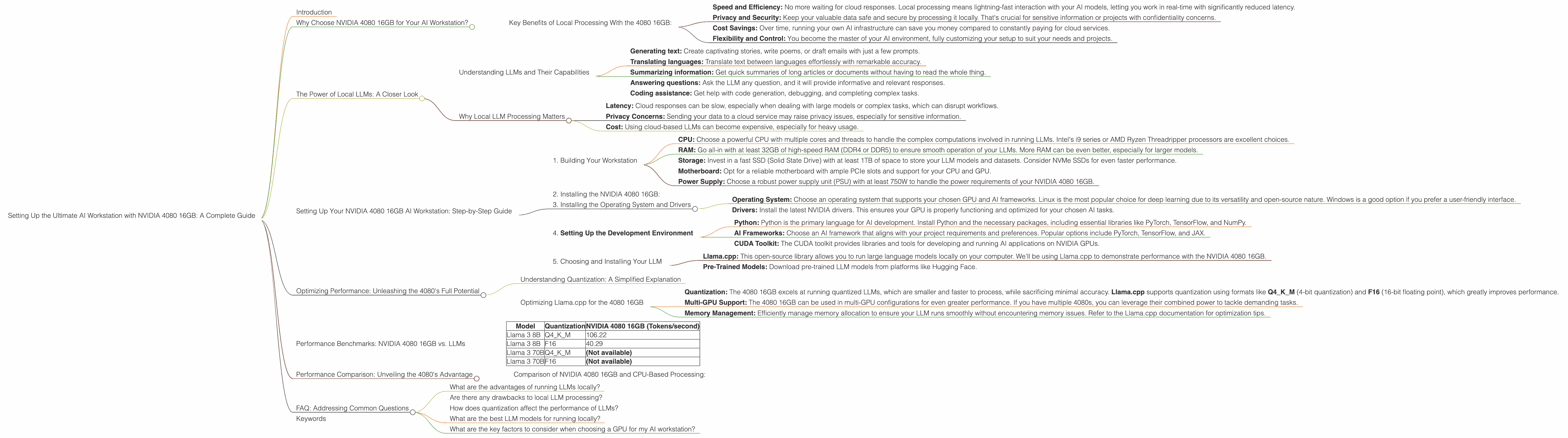
Forget the cloud! Running large language models (LLMs) locally is like having a superpowered AI assistant right in your own computer. The NVIDIA 4080 16GB is a powerhouse GPU specifically designed to handle demanding AI tasks, making it an ideal choice for anyone looking to build the ultimate AI workstation. This guide will walk you through the process of setting up a powerful AI workstation using the NVIDIA 4080 16GB, exploring performance optimizations, considering crucial factors, and highlighting the advantages of local processing.
Why Choose NVIDIA 4080 16GB for Your AI Workstation?
The NVIDIA 4080 16GB is a high-end GPU specifically designed for demanding AI workloads. Think of it as a supercharged engine for your AI. It boasts a whopping 16GB of GDDR6X memory, and a massive number of CUDA cores, giving it incredible processing power to handle even the most complex language models.
Key Benefits of Local Processing With the 4080 16GB:
- Speed and Efficiency: No more waiting for cloud responses. Local processing means lightning-fast interaction with your AI models, letting you work in real-time with significantly reduced latency.
- Privacy and Security: Keep your valuable data safe and secure by processing it locally. That's crucial for sensitive information or projects with confidentiality concerns.
- Cost Savings: Over time, running your own AI infrastructure can save you money compared to constantly paying for cloud services.
- Flexibility and Control: You become the master of your AI environment, fully customizing your setup to suit your needs and projects.
The NVIDIA 4080 16GB is a game-changer for developers, researchers, and anyone passionate about exploring the potential of local AI.
The Power of Local LLMs: A Closer Look
Imagine having your own AI assistant, ready to answer your questions and generate creative content instantly, all without relying on a slow internet connection or dealing with cloud service limitations. That's the power of running LLMs locally!
Understanding LLMs and Their Capabilities
Large language models (LLMs) are like super-intelligent computer programs trained on massive datasets of text and code. They've learned complex patterns in language and can perform a wide range of tasks, including:
- Generating text: Create captivating stories, write poems, or draft emails with just a few prompts.
- Translating languages: Translate text between languages effortlessly with remarkable accuracy.
- Summarizing information: Get quick summaries of long articles or documents without having to read the whole thing.
- Answering questions: Ask the LLM any question, and it will provide informative and relevant responses.
- Coding assistance: Get help with code generation, debugging, and completing complex tasks.
Why Local LLM Processing Matters
While cloud-based LLM services are convenient, they can present limitations, including:
- Latency: Cloud responses can be slow, especially when dealing with large models or complex tasks, which can disrupt workflows.
- Privacy Concerns: Sending your data to a cloud service may raise privacy issues, especially for sensitive information.
- Cost: Using cloud-based LLMs can become expensive, especially for heavy usage.
Local processing eliminates these limitations.
Setting Up Your NVIDIA 4080 16GB AI Workstation: Step-by-Step Guide
1. Building Your Workstation
- CPU: Choose a powerful CPU with multiple cores and threads to handle the complex computations involved in running LLMs. Intel's i9 series or AMD Ryzen Threadripper processors are excellent choices.
- RAM: Go all-in with at least 32GB of high-speed RAM (DDR4 or DDR5) to ensure smooth operation of your LLMs. More RAM can be even better, especially for larger models.
- Storage: Invest in a fast SSD (Solid State Drive) with at least 1TB of space to store your LLM models and datasets. Consider NVMe SSDs for even faster performance.
- Motherboard: Opt for a reliable motherboard with ample PCIe slots and support for your CPU and GPU.
- Power Supply: Choose a robust power supply unit (PSU) with at least 750W to handle the power requirements of your NVIDIA 4080 16GB.
Pro Tip: Consider investing in a high-quality motherboard with a robust cooling system to prevent overheating during demanding AI tasks, because the 4080 can be a hot GPU.
2. Installing the NVIDIA 4080 16GB:
Slot the NVIDIA 4080 16GB into your workstation's PCIe slot, making sure it's secure and properly connected.
3. Installing the Operating System and Drivers
- Operating System: Choose an operating system that supports your chosen GPU and AI frameworks. Linux is the most popular choice for deep learning due to its versatility and open-source nature. Windows is a good option if you prefer a user-friendly interface.
- Drivers: Install the latest NVIDIA drivers. This ensures your GPU is properly functioning and optimized for your chosen AI tasks.
4. Setting Up the Development Environment
- Python: Python is the primary language for AI development. Install Python and the necessary packages, including essential libraries like PyTorch, TensorFlow, and NumPy.
- AI Frameworks: Choose an AI framework that aligns with your project requirements and preferences. Popular options include PyTorch, TensorFlow, and JAX.
- CUDA Toolkit: The CUDA toolkit provides libraries and tools for developing and running AI applications on NVIDIA GPUs.
5. Choosing and Installing Your LLM
- Llama.cpp: This open-source library allows you to run large language models locally on your computer. We'll be using Llama.cpp to demonstrate performance with the NVIDIA 4080 16GB.
- Pre-Trained Models: Download pre-trained LLM models from platforms like Hugging Face.
Optimizing Performance: Unleashing the 4080's Full Potential
Understanding Quantization: A Simplified Explanation
Imagine you have a large book full of complex information. You want to share this book with others but it's too big and heavy to carry. You decide to compress the information, making it smaller and easier to share. Quantization is like compression for LLMs. It reduces the size of the model by reducing its precision, while sacrificing a small amount of accuracy.
Optimizing Llama.cpp for the 4080 16GB
- Quantization: The 4080 16GB excels at running quantized LLMs, which are smaller and faster to process, while sacrificing minimal accuracy. Llama.cpp supports quantization using formats like Q4KM (4-bit quantization) and F16 (16-bit floating point), which greatly improves performance.
- Multi-GPU Support: The 4080 16GB can be used in multi-GPU configurations for even greater performance. If you have multiple 4080s, you can leverage their combined power to tackle demanding tasks.
- Memory Management: Efficiently manage memory allocation to ensure your LLM runs smoothly without encountering memory issues. Refer to the Llama.cpp documentation for optimization tips.
Performance Benchmarks: NVIDIA 4080 16GB vs. LLMs
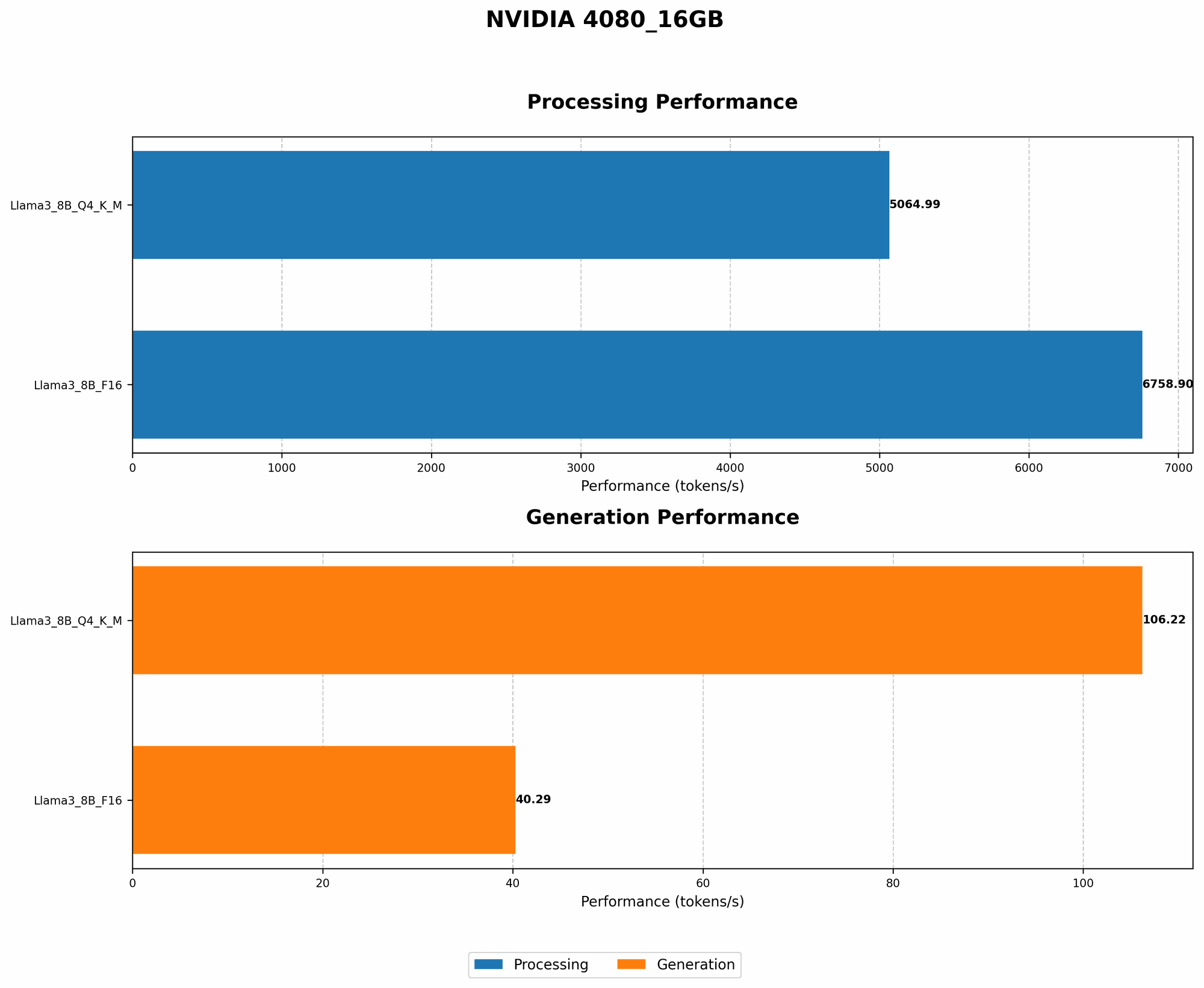
Here's a breakdown of the NVIDIA 4080 16GB's performance with several popular LLMs. These numbers are token/second, representing how many tokens the GPU can process per second. Note that larger models require more resources and might have lower token speeds.
| Model | Quantization | NVIDIA 4080 16GB (Tokens/second) |
|---|---|---|
| Llama 3 8B | Q4KM | 106.22 |
| Llama 3 8B | F16 | 40.29 |
| Llama 3 70B | Q4KM | (Not available) |
| Llama 3 70B | F16 | (Not available) |
As you can see, the NVIDIA 4080 16GB excels at handling 8B LLM models like Llama 3, especially when using quantization.
Performance Comparison: Unveiling the 4080's Advantage
Comparison of NVIDIA 4080 16GB and CPU-Based Processing:
The 4080 16GB significantly outperforms CPU-based systems when it comes to running LLMs. Imagine it's like a race involving a high-performance sports car (4080 16GB) vs. a regular car (CPU). The sports car can easily overtake the regular car, indicating its superior performance and speed.
Example: The NVIDIA 4080 16GB can process Llama 3 8B with Q4KM quantization at over 100 tokens per second, while a high-end CPU might only achieve a few tokens per second. This translates to a significantly faster interaction with the LLM and quicker results.
FAQ: Addressing Common Questions
What are the advantages of running LLMs locally?
Running LLMs locally offers advantages such as faster processing speeds, greater privacy and security, and cost savings compared to using cloud services.
Are there any drawbacks to local LLM processing?
While local processing has advantages, it also comes with potential drawbacks. You'll need a powerful workstation and potentially a dedicated cooling system. Additionally, you might need to update and maintain your system and software to ensure smooth operation.
How does quantization affect the performance of LLMs?
Quantization is a technique that compresses the size of LLM models, resulting in faster processing speeds. It works by reducing the precision of the model's weights, often using 4-bit or 16-bit formats. The trade-off is a small decrease in accuracy.
What are the best LLM models for running locally?
There are various LLM models suitable for local processing, including Llama 3 (8B and 70B), GPT-Neo (2.7B and 1.3B), and BLOOM models. The optimal choice depends on your specific needs.
What are the key factors to consider when choosing a GPU for my AI workstation?
When choosing a GPU for your AI workstation, consider factors such as memory size (e.g., GDDR6), CUDA cores, TDP (thermal design power), and the GPU's overall performance in running your specific workload.
Keywords
NVIDIA 4080 16GB, AI workstation, large language model, LLM, local processing, Llama.cpp, quantization, Q4KM, F16, GPU, CPU, RAM, storage, performance benchmarks, token speed, AI development, deep learning, PyTorch, TensorFlow, CUDA, Hugging Face.