7 Tricks to Avoid Out of Memory Errors on NVIDIA 4090 24GB x2
Introduction
Imagine this: you're ready to unleash the power of a massive language model like Llama 3 on your NVIDIA 4090 with its whopping 24GB of RAM. You're excited to see what it can do, but then BAM! An error pops up: "Out of Memory." Ugh, the dreaded out-of-memory error.
This is a common frustration for developers working with large language models (LLMs). LLMs are hungry beasts, and they need a lot of resources to run. This article will walk you through 7 key tricks to tame those memory-hungry LLMs on your NVIDIA 409024GBx2 setup. We'll cover everything from quantization (think of it like diet for your model) to model size and performance. Buckle up, it's going to be a wild ride through the world of LLMs!
Trick #1: Quantization: Diet for Your Language Model
Have you ever tried to squeeze a family-sized pizza into a personal-sized box? It's a recipe for disaster! That's kind of what happens when you run a large LLM on a limited amount of memory. Your model is trying to stuff all those juicy parameters into a smaller space, and it just can't handle it.
Enter quantization. It's like putting your LLM on a diet. Think of it as changing the "pizza box" size - you reduce the precision of the model's weights (the parameters that define its knowledge) by using fewer bits to store them. This makes your model smaller and more manageable.
Quantization on Your NVIDIA 409024GBx2
We're using two NVIDIA 4090s with 24GB of VRAM each. This means we have 48GB of VRAM total - a lot of space!
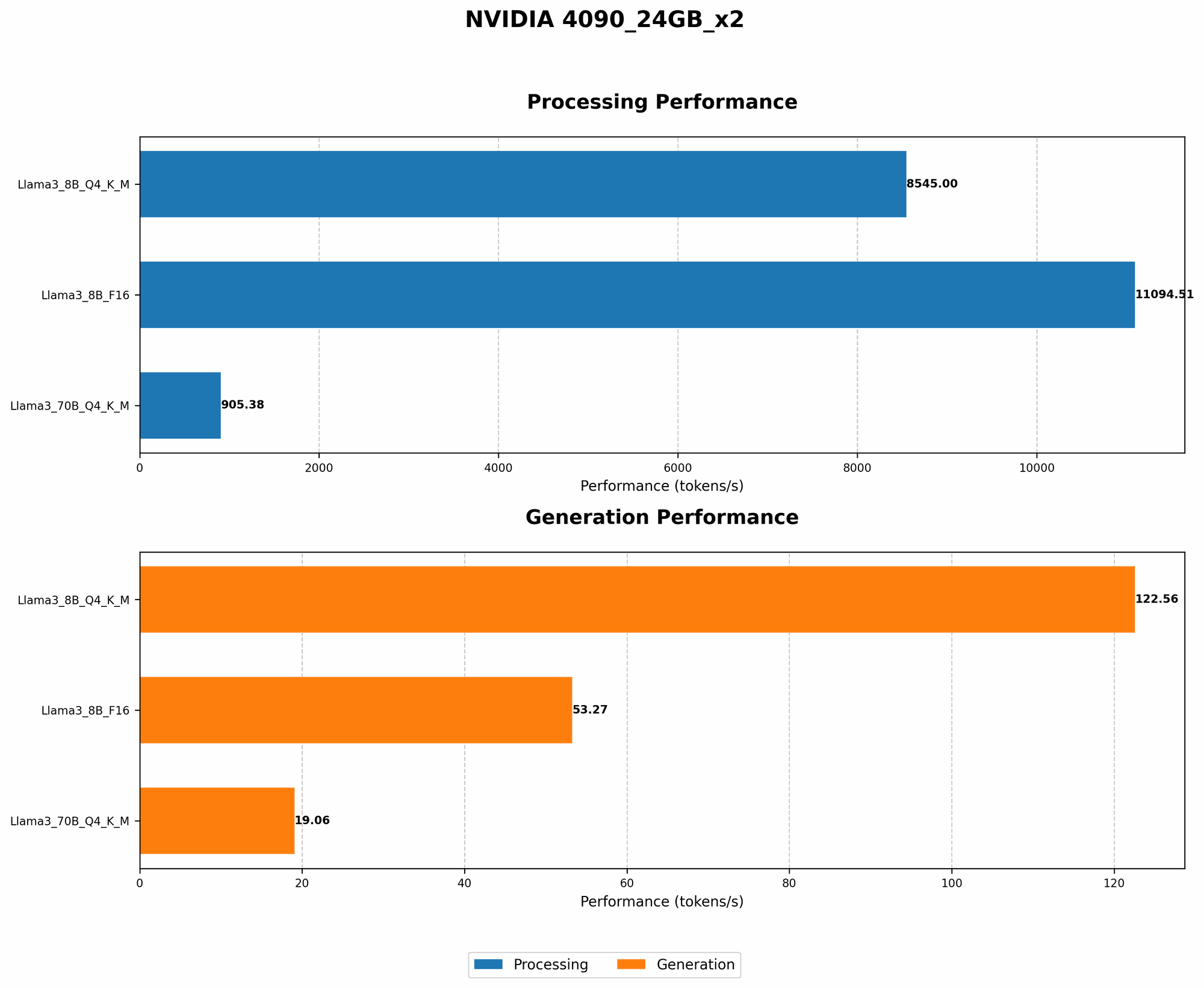
Let's look at the performance difference between Llama 3 models using different quantization levels:
| Model | Quantization | Tokens/Second (Generation) | Tokens/Second (Processing) |
|---|---|---|---|
| Llama 3 8B | Q4KM | 122.56 | 8545.0 |
| Llama 3 8B | F16 | 53.27 | 11094.51 |
| Llama 3 70B | Q4KM | 19.06 | 905.38 |
| Llama 3 70B | F16 | null | null |
- Q4KM: This is the most aggressive quantization level. It uses 4 bits to represent each weight, which significantly reduces memory usage.
- F16: This is a less extreme form of quantization, using 16 bits per weight, which is a good compromise between accuracy and memory efficiency.
Note: The Llama 3 70B model with F16 quantization couldn't fit on our system, which means it requires more RAM.
From the table, we can see that the 8B Llama 3 model, when using Q4KM, is more than twice as fast in terms of token generation compared to the F16 version. However, in terms of processing, the F16 version performs better.
Choosing the Right Quantization Level
There's no one-size-fits-all answer. The best quantization level depends on your specific needs:
- Small models (like Llama 3 8B): Q4KM or F16 can often work without significant accuracy loss. Even Q4KM can be quite effective.
- Larger models (like Llama 3 70B): Quantization is essential. F16 may be the sweet spot for balance between performance and accuracy, especially for large models.
Remember, quantization is just one trick in your toolbox. We'll explore other options in the next sections.
Trick #2: Model Size: Smaller is Sometimes Better
LLMs are like luxury cars: the bigger they are, the more resources they consume. So, before you jump into running a massive 137B parameter model, take a moment to consider your needs. Do you really need all that power, or can you get by with a smaller, more efficient model?
Choosing the Right Model Size for Your NVIDIA 409024GBx2
Let's look at the performance of different Llama 3 models on our setup:
| Model | Quantization | Tokens/Second (Generation) | Tokens/Second (Processing) |
|---|---|---|---|
| Llama 3 8B | Q4KM | 122.56 | 8545.0 |
| Llama 3 70B | Q4KM | 19.06 | 905.38 |
As you can see, the smaller 8B model generates tokens significantly faster than the 70B model.
The Trade-off: Size vs. Performance
Remember, there's a trade-off:
- Smaller models: Generate tokens faster, use less RAM, but may have lower "intellect" (less knowledge and understanding).
- Larger models: More powerful, can handle more complex tasks, but require more RAM and take longer to run.
Try this analogy: Think of a car. A small, fuel-efficient car can get you around town quickly, while a large SUV might be better for road trips and carrying a lot of passengers.
Trick #3: Batch Size: Divide and Conquer
Imagine trying to bake a giant cake in a tiny oven. You'd need to divide the batter into smaller batches to fit it all in. Similarly, when running an LLM, you can sometimes overcome memory limitations by breaking down the task into smaller chunks. This is called "batching."
Batching on your NVIDIA 409024GBx2
For example, instead of trying to process a huge block of text all at once, you can split it into smaller batches. Think of each batch like a slice of the giant cake.
Adjusting Batch Size for Optimal Performance
You'll need to experiment to find the right batch size for your setup and model. Too small of a batch size, and you might slow down your model because it has to perform lots of small operations. Too big, and you'll run into those dreaded out-of-memory errors.
Trick #4: Gradient Accumulation: Sharing the Load
Imagine having a team of workers building a house. Each worker can only carry a certain amount of bricks at once, but they can work together to move all the bricks needed for the entire house. This cooperation is what gradient accumulation does for your LLM: it lets your model handle larger training datasets without overloading its memory.
Gradient Accumulation Explained
Gradient accumulation is like having a team of workers. It divides the training data into chunks, and for each chunk, it accumulates the gradients (which are like the instructions for updating the model's weights) without actually updating the weights yet. Once it's finished with all the chunks, it updates the weights based on the accumulated gradients.
The Benefits of Gradient Accumulation
- Handles larger datasets: Makes it possible to train larger models on more data.
- Reduces memory usage: Doesn't need to store all the gradients in memory at once.
Trick #5: Multi-GPU Training: Teamwork Makes the Dream Work
Imagine having two super-fast robots working on a project. Each robot can do its own part quickly, and by combining their efforts, they can finish the job even faster. That's the idea behind multi-GPU training.
Harnessing the Power of Multiple GPUs
With multiple GPUs, you can distribute the work of training or running your LLM across those GPUs, effectively doubling (or tripling, or quadrupling) your processing power!
Challenges of Multi-GPU Training
Multi-GPU training is not a silver bullet. It requires careful configuration and can introduce complexity to your setup. You need to ensure that your model is correctly split across the GPUs, and you need to manage communication between them to make sure everything runs smoothly.
Trick #6: Offloading Memory to CPU: Helping Hands
Just as a team of workers can share the workload, the CPU can assist with memory management for your LLM, especially during the processing part. This helps keep the GPU focused on its main task: calculating the model's outputs.
CPU Offloading: A Hands-Off Approach
We can use the CPU as a temporary "parking lot" for some data, freeing up the precious VRAM of your GPU. When the GPU needs that data again, it can simply ask the CPU for it.
Benefits of CPU Offloading
- Reduces GPU memory pressure: Offloading data to CPU memory can help avoid out-of-memory errors.
- Improves performance: By reducing the workload on the GPU, you can often get faster processing speeds.
Trick #7: Optimizing Your Code: Streamlining Your Model
Just like a well-organized kitchen can make cooking more efficient, efficient code can help your LLM run faster and use less memory. Optimizing your code involves finding and fixing bottlenecks, which are areas where your program spends a lot of time unnecessarily.
Common Bottlenecks to Look For
- Unnecessary data copying: Copying data between different parts of your code unnecessarily can cause delays.
- Inefficient memory allocation: How your code manages memory can impact its efficiency.
- Unused variables: Free up memory by removing variables you don't actually need.
Tools for Debugging and Optimizing Your Code
- Profiling tools: These tools allow you to identify where your code is spending the most time.
- Code optimization libraries: Libraries like NumPy and TensorFlow provide optimized functions that can improve the performance of your code.
FAQ
What are the best tools for running LLMs on my NVIDIA 409024GBx2?
There are several excellent tools available, including:
- llama.cpp: Open-source, high-performance C++ implementation that supports multiple GPUs.
- Hugging Face Transformers: A popular library that provides pre-trained LLMs and tools for fine-tuning and running them.
- DeepSpeed: An optimization library designed to accelerate LLM training and inference.
How do I choose the right LLM for my needs?
The best LLM for you depends on your specific use case:
- For simple tasks: A smaller LLM like Llama 3 8B might be sufficient.
- For complex tasks: You might need a larger model, like Llama 3 70B.
- For specific domains: There are specialized LLMs designed for tasks like text generation, translation, or code completion.
What are the latest advancements in LLM technology?
The field of LLMs is constantly evolving. Here are some exciting trends:
- Smaller, more efficient models: Researchers are working on LLMs that require less memory and power.
- Improved accuracy and performance: New models are being developed with better accuracy and faster inference speeds.
- Multi-modal models: LLMs that can work with different types of data, such as text, images, and audio.
Keywords
Large Language Models, LLM, NVIDIA 4090, 24GB, out-of-memory, RAM, VRAM, Llama 3, 8B, 70B, quantization, Q4KM, F16, batch size, gradient accumulation, multi-GPU, CPU offloading, code optimization, llama.cpp, Hugging Face Transformers, DeepSpeed.