7 Cooling Solutions for 24 7 AI Operations with NVIDIA 3080 10GB

Introduction
The world of Large Language Models (LLMs) is heating up! These AI marvels can generate stunning text, translate languages, write different creative content formats, and even answer your questions in an informative way. But with great power comes great… heat. As more developers and enthusiasts are exploring the capabilities of running LLMs locally, they’re also discovering the challenges of keeping their hardware cool, especially when dealing with a powerhouse like the NVIDIA 3080 10GB.
This article is your guide to navigating the heatwave of LLM operations, specifically focusing on the NVIDIA 3080 10GB. We'll dive into practical cooling solutions that can keep your prized GPU running smoothly and efficiently, even when your LLM is working overtime.
Understanding the Heat: Why Cooling Matters
Think of your NVIDIA 3080 10GB as a tiny, hyper-efficient city bustling with activity. When it's crunching numbers for your LLM, billions of transistors are racing around, creating a considerable amount of heat. If that heat isn't managed, it can lead to:
- Reduced performance: Like a tired athlete, your GPU's performance can dramatically decrease when it overheats. This means slower responses, increased latency, and even crashes.
- Hardware damage: Extreme temperatures can damage your GPU's delicate components, leading to expensive repairs or, worse, a complete failure.
- System instability: A hot GPU can destabilize your entire system, leading to unexpected shutdowns, blue screens of death, and general frustration.
Cooling Strategies: 7 Solutions for Your NVIDIA 3080 10GB
Here are some practical cooling solutions for tackling GPU heat and keeping your LLM running smoothly:
1. The Power of Fans: A Simple Yet Effective Solution
Think of fans as the air conditioning system for your GPU. They create airflow that carries away heat and prevents it from building up. Here are some tips:
- Check your case: Make sure your PC case has adequate ventilation. Look for cases with multiple fan slots and ample space for airflow.
- Upgrade your fans: If your case fans are weak or sluggish, consider upgrading to higher-performance fans. Look for fans with higher CFM (cubic feet per minute) ratings for better airflow.
- Consider fan curves: Fan curves control how fast your fans spin based on the GPU's temperature. Adjust the fan curve to ensure that your fans ramp up when the GPU starts getting warm.
2. Water Cooling: Diving Deeper for Extreme Cooling
Water cooling takes cooling to the next level, replacing air with a liquid coolant to dissipate heat. Imagine it as the ultimate high-performance car radiator for your GPU!
- All-in-one (AIO) coolers: AIO coolers are easy to install and offer substantial cooling benefits. They consist of a radiator, pump, and fans, all contained in a single, compact unit.
- Custom loop cooling: For the ultimate cooling experience, you can build a custom loop with high-performance components like radiators, pumps, and tubing. This provides unparalleled control and customization, but it requires more technical expertise.
3. Thermal Paste: The Glue That Holds It All Together
Thermal paste acts like a bridge between your GPU and the heatsink, ensuring efficient heat transfer. Think of it as the adhesive that makes sure your cooling system is firmly linked to your GPU.
- Repaste regularly: Over time, thermal paste can dry out and become less effective. Repaste your GPU every 6-12 months for optimal heat dissipation.
- Use quality thermal paste: Not all thermal pastes are created equal. Choose a high-quality paste with good thermal conductivity for maximum cooling.
4. Underclocking: A Simple Tweak for Temperature Control
Underclocking your GPU involves lowering its core clock speed. This reduces the workload on your GPU, resulting in lower temperatures. Think of it as giving your GPU a little break to cool down.
- Use GPU monitoring software: Use software like MSI Afterburner or EVGA Precision X1 to monitor your GPU's temperature and adjust its clock speed.
- Start with small reductions: Don't go overboard with underclocking. Start with small reductions in clock speed and see how the GPU's temperature responds.
5. Ambient Temperature Control: Keeping Your Room Cool
The ambient temperature of your room can also affect your GPU's temperature. Think of it like the weather outside – if it's hot outside, your GPU will also feel the heat.
- Air conditioning: Using air conditioning can significantly lower the ambient temperature in your room.
- Fans: Using fans to circulate air around your PC can help keep it cool.
- Room location: Place your PC in a well-ventilated area away from direct sunlight or heat sources.
6. Open Air Setups: Unleashing Maximum Airflow
For the ultimate airflow, consider an open air setup. This involves mounting your GPU and other components on a custom frame, allowing for unrestricted airflow. Imagine it like a high-end supercomputer setup that prioritizes ventilation.
- Increased customization: Open air setups offer maximum flexibility in component placement and cooling solutions.
- Improved airflow: The open air setup allows for unrestricted airflow, minimizing heat buildup around your components.
7. Quantization: Shrinking the Size of LLMs for Less Heat
Quantization is a powerful technique that helps reduce the size of your LLM while preserving its accuracy. Think of it as shrinking your LLM down without losing any important details.
- Lower memory usage: Quantization reduces the amount of memory required to run your LLM, which in turn reduces heat generation.
- Faster inference speeds: Quantization can sometimes lead to faster inference speeds, further reducing the workload on your GPU and lowering its temperature.
Performance Comparison: NVIDIA 3080 10GB with Popular LLM Models
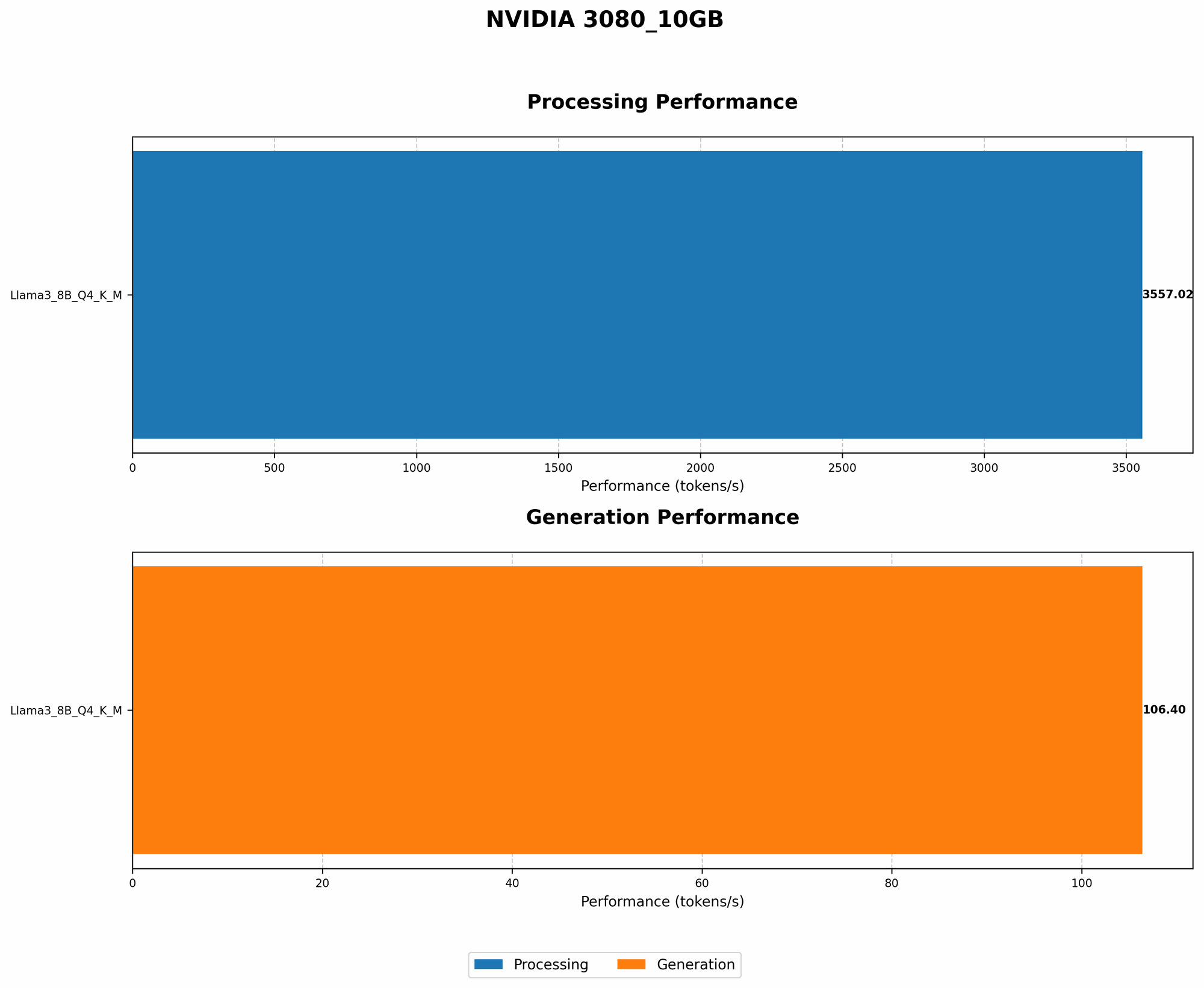
Let's take a closer look at how the NVIDIA 3080 10GB performs with some popular LLM models:
| Model Configuration | Tokens/Second |
|---|---|
| Llama 3 8B Q4KM Generation | 106.4 |
| Llama 3 8B Q4KM Processing | 3557.02 |
Key Observations:
- Llama 3 8B Q4KM: The 3080 10GB is a solid choice for running Llama 3 8B model, achieving impressive token per second rates both for generation and processing tasks.
Important Note: The data provided does not include information on the performance of the 3080 10GB with Llama 3 models in F16 precision or with the larger Llama 70B model. The performance can vary depending on the specific model and the quantization method used.
FAQ: Clearing Common Questions
Q: ** How do I know if my GPU is overheating?
A: Use GPU monitoring software like MSI Afterburner or EVGA Precision X1 to monitor your GPU's temperature. If it regularly exceeds 80°C (176°F), it's a sign of overheating.
Q: ** What's the best way to clean my GPU?
A: Use compressed air to remove dust and debris from your GPU's heatsink and fan. Avoid using liquids, as they can damage sensitive components.
Q: ** Can I use a laptop cooler with my desktop PC?
A: While laptop coolers can provide some cooling benefits, they won't be as effective as dedicated GPU coolers. They're designed for smaller, more confined environments.
Q: ** What's the difference between air cooling and water cooling?
A: Air cooling uses air to dissipate heat, while water cooling uses liquid coolant. Water cooling typically provides better cooling performance but is also more complex to install and maintain.
Keywords:
NVIDIA 3080 10GB, LLM cooling, AI hardware, GPU temperature,
GPU performance, LLM inference, fan cooling, water cooling,
thermal paste, underclocking, ambient temperature,
open air setup, quantization,
Llama 3 8B, token speed, LLM models,