6 Ways to Prevent Overheating on Apple M2 Ultra During AI Workloads

Introduction
The world of large language models (LLMs) is evolving at breakneck speed, with exciting new models emerging regularly. While these LLMs are capable of generating impressive text, translate languages, write different kinds of creative content, and answer your questions in an informative way, they can also be quite demanding on your computer's resources, especially when running them locally. One common issue that users face is overheating, which can negatively impact performance and even cause system instability.
This article is designed to help you understand and prevent overheating on Apple's powerful M2 Ultra chip during AI workloads. We'll delve into various cooling strategies, explore the impact of different LLM models on thermal performance, and provide practical tips for keeping your system running cool and stable.
The M2 Ultra: A Powerful Chip with A Heat Problem
The Apple M2 Ultra is a beast of a chip, packed with 24 CPU cores and a whopping 60 or 76 GPU cores, depending on the configuration. This makes it an ideal choice for running demanding applications like LLMs. However, all that power comes with a price: heat.
Think of your M2 Ultra like a tiny, powerful engine. It churns through data like a Formula 1 car on the track, but that much horsepower generates a lot of heat. If you run LLMs for extended periods, your M2 Ultra might overheat, leading to slower response times and even potential damage.
Understanding the Problem: LLM Models and Thermal Impact
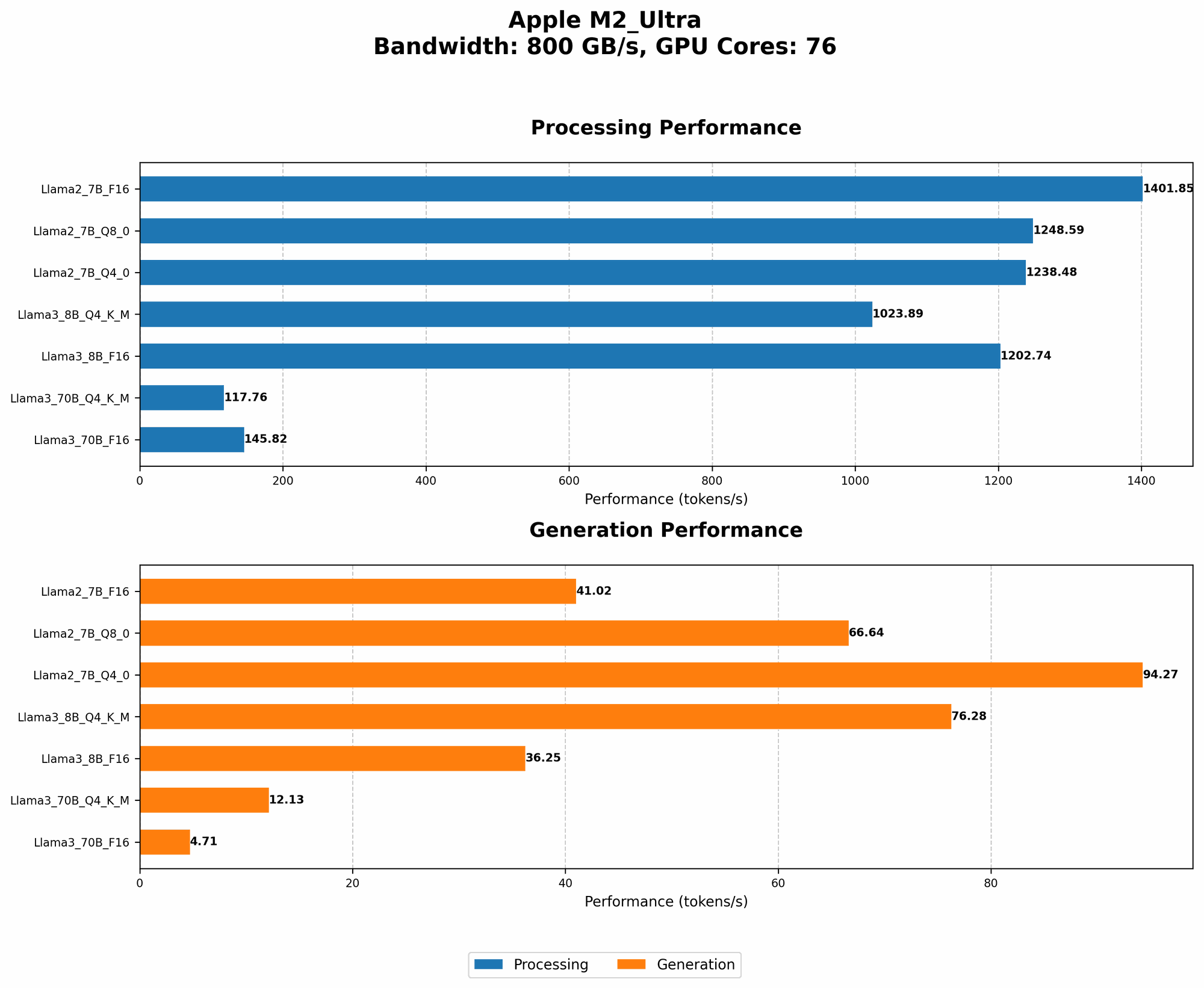
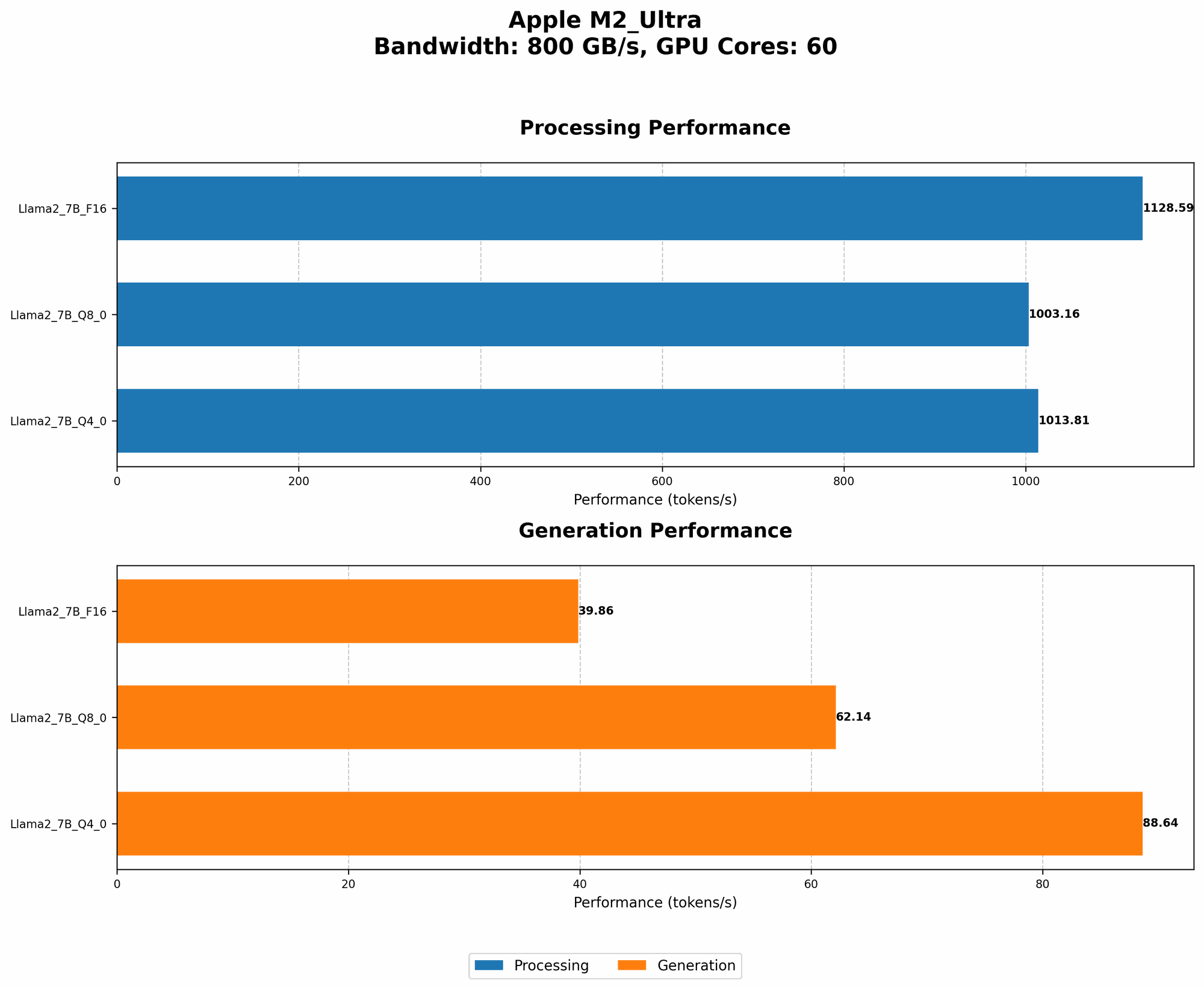
Let's dive into the specifics. The heat generated while running LLMs is directly related to the model's size, its complexity, and the specific way it's used. Larger models like Llama 70B require more computational resources, resulting in increased heat output. Similarly, operations like text generation put a heavier burden on the GPU, contributing to higher temperatures.
Comparing Llama27B and Llama370B: A Reality Check
The data shows a clear trend: larger models generally have a greater impact on your M2 Ultra's temperature. Let's compare the performance of Llama27B and Llama370B models on the M2 Ultra, keeping in mind that these are just snapshots of the performance landscape and can vary depending on factors like the specific model and its configuration:
| Model | Processing (tokens/second) | Generation (tokens/second) |
|---|---|---|
| Llama27BF16 | 1401.85 | 41.02 |
| Llama27BQ8_0 | 1248.59 | 66.64 |
| Llama27BQ4_0 | 1238.48 | 94.27 |
| Llama370BF16 | 145.82 | 4.71 |
| Llama370BQ4KM | 117.76 | 12.13 |
Note: The data for Llama3_70B on Apple M2 Ultra with 76 GPU cores is missing, but it's likely to be significantly higher due to the increased GPU power.
As you can see, the Llama27B models achieve significantly higher token processing and generation rates compared to the Llama370B. This translates into faster inference times, but also generates more heat.
6 Ways to Prevent Overheating on Apple M2 Ultra During AI Workloads
Now that you understand the problem, it's time to discuss the solutions. Here are six strategies to prevent overheating and maintain peak performance on your M2 Ultra while running LLMs:
1. Embrace the Power of Quantization
Quantization is a technique that compresses the size of your LLM model, making it easier for your M2 Ultra to handle. Think of it like a digital diet, but for AI. Reducing the model size means less memory and compute requirements, leading to lower power consumption and reduced heat production.
For example, using quantized models like Llama27BQ80 or Llama27BQ40 can significantly improve the thermal performance of your system. These models are smaller and require less processing power, ultimately reducing the heat generated.
2. Harness the Power of the "F16" Mode
F16 mode is like running your LLM engine on high-octane fuel. It significantly reduces the memory needed to store the model weights, resulting in a faster processing speed, but it can increase heat generation.
However, the M2 Ultra is designed to handle the "F16" mode efficiently. While it may produce slightly higher temperatures, the overall performance gain can be significant. This approach works well for models like Llama27BF16, but requires careful monitoring to make sure the system doesn't overheat.
3. Optimize the "Threads" Setting
The "threads" setting in your LLM software determines how many CPU cores are dedicated to the model's execution. By adjusting this setting, you can carefully control the workload and power consumption, minimizing the heat generated.
For example, instead of utilizing all 24 CPU cores, you might choose to run your LLM on a smaller number of cores, reducing the overall processing power and heat output. This is a simple yet effective method to fine-tune the thermal performance of your system.
4. Utilize High-Quality Cooling Pads
If you're serious about keeping your M2 Ultra cool, invest in a high-quality cooling pad. These pads are designed to dissipate heat effectively by providing a larger surface area for airflow, allowing for more efficient cooling of the system.
Think of a cooling pad as an extra layer of protection for your M2 Ultra, providing an additional heat sink to help manage the heat generated during intensive AI processing.
5. Take Advantage of "Sparse" Models
Sparse models are like having a specialized engine for your LLM. They are carefully designed to use only a limited number of connections, minimizing the computational burden and reducing the associated heat output.
While they might not offer the same performance as dense models, they can achieve good results while keeping temperatures in check. This is especially beneficial if you are running your LLMs on older or less powerful systems.
6. Set the "Batch" Size Wisely
This approach involves setting the "batch" size, which determines how many inputs are processed at once. Larger batch sizes can lead to faster computation but also increase the computational load on your M2 Ultra.
By adjusting the "batch" size, you can find a balance between performance and heat generation. A smaller batch size might result in slower inference times but will produce less heat.
FAQ
What is the significance of overheating for my M2 Ultra?
Overheating can lead to a variety of issues, including:
- Decreased performance: As the temperature increases, the M2 Ultra will throttle down, leading to slower execution speeds.
- System instability: Extreme overheating can cause your system to crash or freeze altogether.
- Potential hardware damage: Long-term exposure to high temperatures can damage the sensitive components of your M2 Ultra chip.
How can I monitor the temperature of my M2 Ultra?
You can use the built-in Activity Monitor application on macOS to monitor the temperature of your M2 Ultra. The "Temperature" tab in the "System" section will display the current temperature of your CPU and GPU.
Is there a safe temperature range for my M2 Ultra?
Apple doesn't officially publish a specific temperature range for the M2 Ultra. However, a good rule of thumb is to keep the temperature below 85 degrees Celsius. If you see the temperature exceeding this threshold regularly, consider taking steps to improve cooling.
Can I overclock my M2 Ultra for better LLM performance?
Overclocking your M2 Ultra can potentially increase its performance, but it also comes with a higher risk of overheating.
Should I be using a custom cooling solution for my M2 Ultra?
While custom cooling solutions can be effective, they are also more complex and require more technical knowledge. If you're comfortable with working on your computer's hardware, a custom cooling solution might be beneficial. If not, you can start with a high-quality cooling pad and see if that improves thermal performance.
Keywords
Apple M2 Ultra, LLM, Overheating, Cooling, Thermal Performance, Quantization, F16, GPU Cores, Threads, Batch Size, Sparse Models, Llama 7B, Llama 70B, Llama 2, Llama 3, AI, Machine Learning, Token Speed, Generation, Processing, Inference.