6 Ways to Prevent Overheating on Apple M2 Pro During AI Workloads
Introduction
The Apple M2 Pro chip has become a popular choice for AI enthusiasts, especially those who want to run large language models (LLMs) locally. These models allow you to generate text, translate languages, write different kinds of creative content, and answer your questions in an informative way. But there's one big catch: LLMs require a lot of processing power, and running them on your Macbook can lead to overheating, which can slow down your computer and even damage your chip.
This article delves into the world of cooling those fiery AI models on your Apple M2 Pro. We'll explore six effective ways to prevent your chip from reaching a high enough temperature to warrant a visit to the Apple Genius Bar.
Understanding the Problem: The Heat is On
Imagine your computer like a marathon runner. It can handle a lot of work, but it needs to take breaks to avoid burnout. Similarly, your M2 Pro chip needs to stay cool to keep performing optimally.
LLMs push your chip to its limits, consuming a lot of energy and generating heat. This is similar to how a heavy workout makes your body temperature rise. If the heat builds up too quickly, your M2 Pro can start to throttle its performance to prevent damage, leading to slowdowns and frustrating lag.
6 Ways to Keep Your M2 Pro Cool During AI Workloads
1. Optimize Your LLM Settings: Choosing the Right Model and Quantization
The first step to preventing overheating is to optimize your LLM settings. Think of it as choosing the right gear for your marathon. You wouldn't wear heavy winter clothing for a summer run, right?
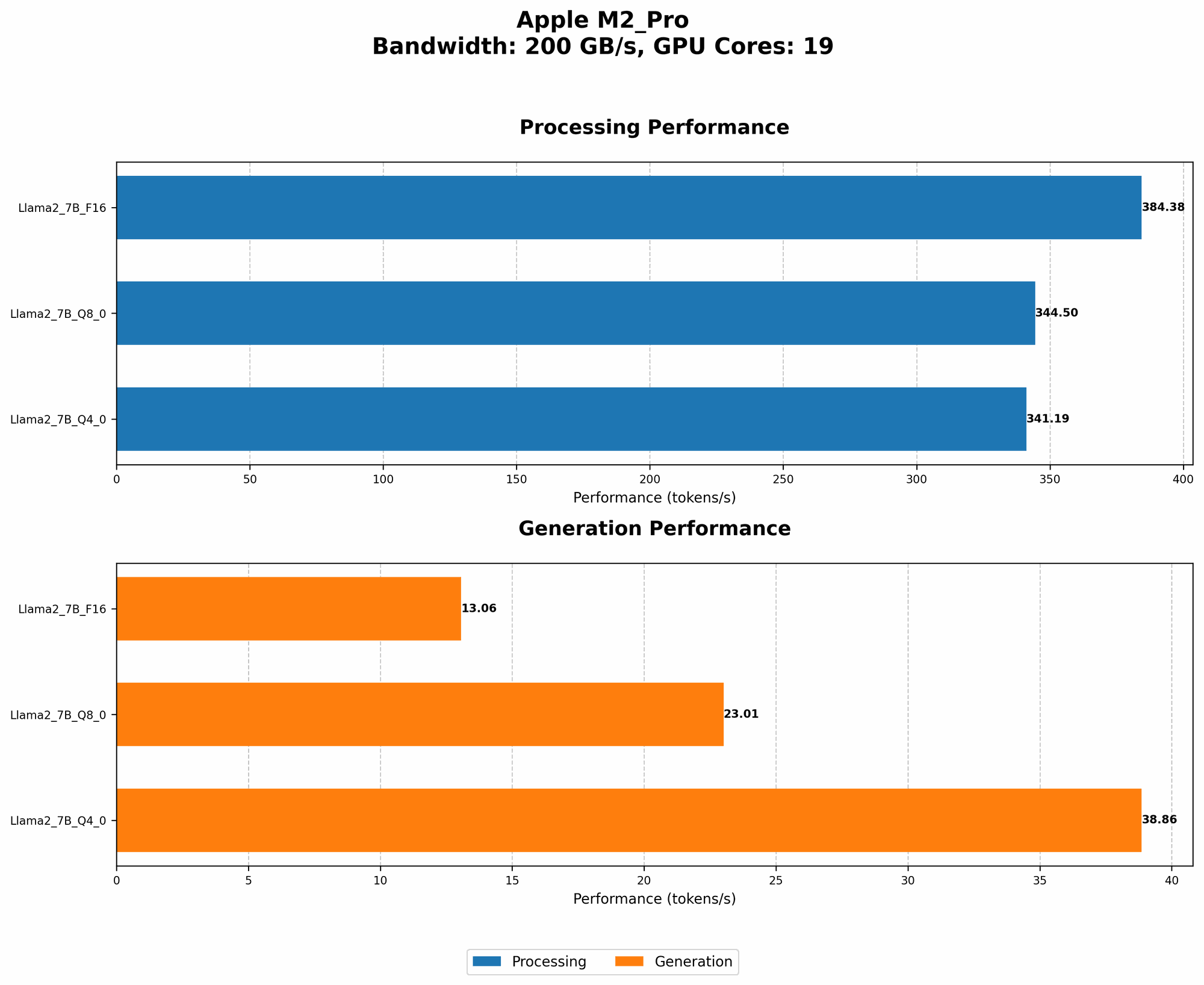
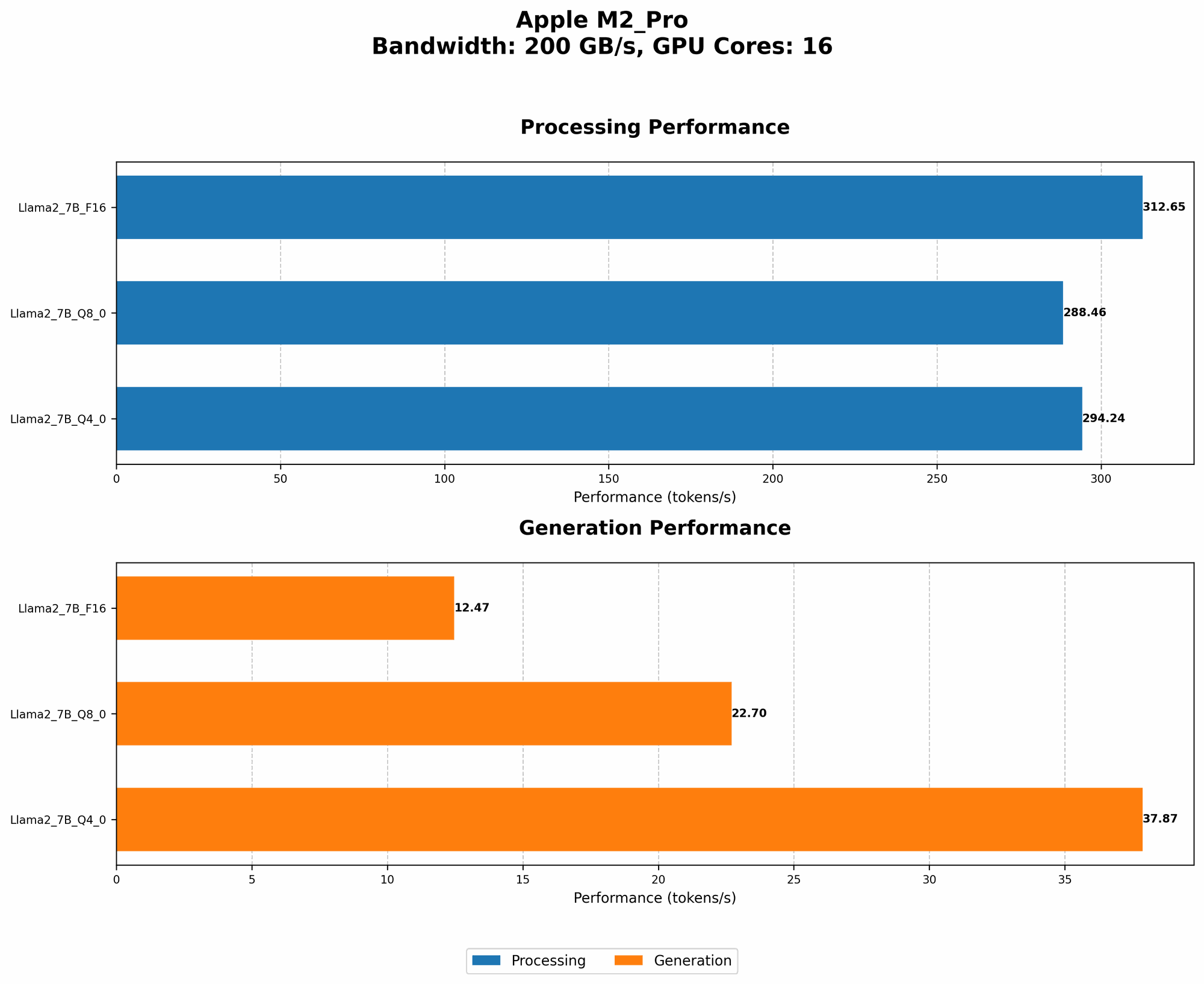
LLM Model Selection: * Smaller Models, Less Heat: Running a smaller LLM, like Llama 7B, generally consumes less power than a larger model like Llama 70B. This is because simpler models require less processing power, thus generating less heat. * Llama 7B vs. 70B Performance Comparison on M2 Pro:
| Model | Llama2 7B F16 Processing (tokens/second) | Llama2 7B Q8_0 Processing (tokens/second) | Llama2 7B Q4_0 Processing (tokens/second) |
|---|---|---|---|
| M2 Pro (16 GPU Cores) | 312.65 | 288.46 | 294.24 |
| M2 Pro (19 GPU Cores) | 384.38 | 344.5 | 341.19 |
Quantization: The Art of Compression
Quantization is a technique that essentially "compresses" the LLM model, making it smaller and faster. This can significantly reduce the heat generated, as it requires less processing power.
* Think of it like shrinking a large photo: It's faster to download a smaller version of the image than the original, and it consumes less data.
Quantization Options: * F16: A "full precision" format that is powerful but requires a lot of resources (and heat!). * Q80: A "reduced precision" format that makes the LLM smaller and faster, generating less heat. * Q40: An even more "compressed" format that balances performance and energy efficiency, making it an excellent choice for a cooler run.
Data Analysis:
The table above shows the performance of Llama 2 7B in different quantization formats on the M2 Pro:
- F16: While it performs well, F16 generates the most heat due to its high processing demands.
- Q8_0: Produces a noticeable decrease in performance compared to F16, but it achieves better energy efficiency, leading to reduced heat output.
- Q4_0: Offers a good balance between performance and energy efficiency. It's a great option for keeping your M2 Pro cool while still getting good results.
Remember: There's no single "best" quantization format. The ideal one depends on your specific needs and the LLM model you're running.
2. Use a Dedicated AI Framework: Like llama.cpp or llama.c
AI frameworks like llama.cpp and llama.c are specifically designed for running LLMs, and they are often more optimized for performance and energy efficiency than general-purpose programming languages like Python. These frameworks efficiently manage the process of loading, running, and unloading the LLM model, minimizing the strain on your M2 Pro.
Think of it like using a specialized mountaineering gear: While you can climb a mountain with regular hiking gear, specialized gear designed for extreme conditions makes it significantly easier and safer.
3. Take Advantage of the Power of External GPUs: Boost Performance and Reduce CPU Strain
External GPUs (eGPUs) offer a potent solution for offloading heavy processing tasks from your M2 Pro. This allows your CPU to focus on other processes, reducing its workload and heat output.
Think of it like having an assistant: Your M2 Pro can focus on managing the overall system while the eGPU handles the demanding LLM computations.
eGPU Benefits:
- Increased Performance: eGPUs can significantly boost the speed of LLM inference, allowing you to run larger models or achieve faster results.
- Reduced CPU Load: By offloading LLM processing to the eGPU, your M2 Pro can focus on other tasks, reducing its workload and heat generation.
- Improved Cooling: The eGPU itself has its own cooling system, further reducing the thermal load on your M2 Pro.
Choosing the Right eGPU:
- Compatibility: Ensure the eGPU is compatible with your M2 Pro MacBook.
- Performance: Consider a powerful eGPU with a high-end graphics card to handle the demanding LLM workloads.
- Cooling: Opt for an eGPU with a good cooling system to effectively dissipate heat.
Note: Remember that eGPUs are an additional investment, but they can be worthwhile if you frequently work with large and computationally intensive LLMs.
4. Keep Your MacBook Cool: Consider a Laptop Stand and Room Temperature
You've optimized the LLM and frameworks, potentially even added an eGPU. Now, it's time to focus on the environment your M2 Pro operates in.
Laptop Stand:
Using a laptop stand elevates your MacBook, improving airflow and allowing better cooling.
Room Temperature:
Keep your MacBook in a cool environment, especially if you're running heavy AI workloads. A cooler room temperature allows your M2 Pro to operate efficiently and reduce overheating.
Think of it like a marathon runner: They need to hydrate and stay cool to avoid overheating. Your M2 Pro benefits from a cool environment and adequate ventilation.
5. Use Cooling Pads: Extra Ventilation for Your MacBook
Cooling pads add an extra layer of ventilation to your Macbook, helping to dissipate heat more effectively. They typically use fans to circulate air around your device, which helps to keep the M2 Pro cool.
Analogies for Cooling Pads:
- Think of it like a portable air conditioner for your laptop: It provides a dedicated source of cool air, similar to how an air conditioner keeps your room cool.
- Like a fan for your M2 Pro: Cooling pads provide a constant airflow, similar to how a fan helps to keep your body cool.
Note: Cooling pads come in various sizes and designs. Choose one that fits your Macbook and provides adequate cooling for your needs.
6. Monitor Your System Temperature: Stay Informed and Proactive
Monitoring your system temperature is crucial for preventing overheating. This allows you to identify potential issues early on and take proactive steps to cool down your MacBook.
Temperature Monitoring Tools:
- Built-in macOS Activity Monitor: This tool provides real-time system information, including CPU temperature.
- Third-Party Apps: There are various third-party apps available that offer more detailed temperature monitoring and alerts.
Temperature Thresholds:
- Normal Operating Range: The normal operating temperature for an M2 Pro chip is typically below 90°C.
- Warning Threshold: If the temperature surpasses 95°C, you should start to take steps to reduce it.
- Critical Threshold: Temperatures exceeding 100°C can damage your M2 Pro chip, so it's crucial to take immediate action to prevent this.
Proactive Measures:
- Reduce Workload: If your system temperature is high, consider reducing the workload by closing unnecessary applications or limiting the use of resource-intensive tasks.
- Adjust Settings: Lowering the screen brightness or disabling unnecessary background processes can help to reduce heat generation.
- Take a Break: Give your M2 Pro a break by shutting down the MacBook or entering sleep mode for a while.
Think of it like a car's dashboard: It provides valuable information about the car's performance, allowing you to take action to prevent problems. Similarly, monitoring your system temperature allows you to keep your M2 Pro running smoothly and prevent overheating.
Conclusion
While LLMs offer immense potential, they also present unique challenges. Overheating is a common concern for users running these demanding models on their M2 Pro. By following these six strategies, you can navigate the potential pitfalls of LLM-induced heat and keep your computer cool and running smoothly.
Remember, prevention is key. By optimizing your LLM settings, using dedicated AI frameworks, and taking proactive steps to monitor and manage system temperature, you can enjoy all the benefits of LLMs without the risk of overheating your M2 Pro.
FAQ
What is a good temperature for my M2 Pro?
A good temperature for your M2 Pro is typically below 90°C during normal use. However, temperatures can fluctuate depending on the workloads you're running. It's always a good idea to monitor your system temperature closely, especially when running resource-intensive tasks like LLMs.
How can I tell if my M2 Pro is overheating?
There are several ways to tell if your M2 Pro is overheating:
- Performance Slowdowns: You might notice your MacBook becoming sluggish, especially when running demanding applications or games.
- Fan Noise: The fans may start running louder than usual as they try to cool down the chip.
- System Alerts: macOS might display warnings or alerts if the temperature reaches a critical level.
- Temperature Monitoring Tools: Using tools like Activity Monitor or third-party temperature monitoring apps can provide real-time information about your system's temperature.
What should I do if my M2 Pro is overheating?
If your M2 Pro is overheating, take the following steps:
- Reduce Workload: Close unnecessary applications or limit the use of resource-intensive tasks.
- Adjust Settings: Lower the screen brightness or disable unnecessary background processes.
- Take a Break: Give your M2 Pro a break by shutting down the MacBook or entering sleep mode for a while.
- Check for Dust Buildup: Clean the vents and fans on your MacBook to ensure proper airflow.
Can I use an external cooling pad to cool down my M2 Pro?
Yes, using a cooling pad can help to keep your M2 Pro cool. Cooling pads provide extra ventilation and airflow, which can help to reduce the temperature of your MacBook. Make sure you choose a cooling pad that’s compatible with your MacBook and provides adequate cooling for your needs.
What is quantization, and how does it affect heating?
Quantization is a technique that reduces the size and complexity of an LLM model. This can significantly reduce the amount of processing power needed to run the model, resulting in less heat generation.
How can I improve performance and reduce heat when running LLMs on my M2 Pro?
You can improve performance and reduce heat when running LLMs on your M2 Pro by:
- Choosing the right LLM model: Select a smaller model if possible, or use a compressed version of the model.
- Using a dedicated AI framework: Frameworks like llama.cpp and llama.c are optimized for running LLMs and can reduce heat generation.
- Using an external GPU: Offloading LLM processing to an eGPU can significantly reduce the workload on your M2 Pro, resulting in less heat.
- Keeping your MacBook cool: Use a laptop stand, keep your MacBook in a cool environment, and use a cooling pad to help dissipate heat.
What other factors besides LLM workloads can cause overheating?
Other factors besides LLM workloads that can cause overheating on your M2 Pro include:
- Running multiple demanding applications: If you have multiple demanding applications running at the same time, your M2 Pro may have difficulty keeping up.
- Playing graphics-intensive games: Games that require a lot of processing power can generate a lot of heat.
- Dust buildup: Dust buildup in the vents and fans can obstruct airflow, leading to overheating.
- Extreme temperatures: If your MacBook is exposed to extremely high temperatures, it may overheat.
Keywords
M2 Pro, Apple, LLM, large language model, overheating, cooling, prevent, AI, framework, llama.cpp, llama.c, quantization, F16, Q80, Q40, eGPU, external GPU, laptop stand, cooling pad, temperature monitoring, Activity Monitor, performance, efficiency, heat generation, thermal management, GPU, CPU, ventilation, airflow, dust buildup, room temperature, workload, settings, break, sleep mode,