6 Ways to Prevent Overheating on Apple M2 Max During AI Workloads
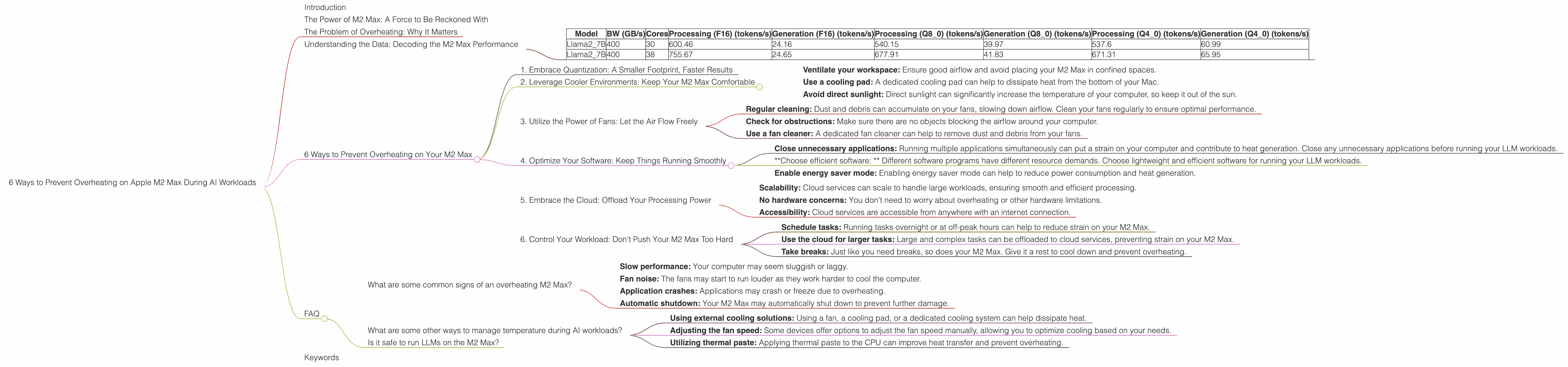
Introduction
The Apple M2 Max is a powerful chip designed to handle demanding tasks like video editing, 3D rendering, and gaming. But did you know it can also be a powerhouse for running large language models (LLMs)? LLMs, like the popular Llama 2 series, are revolutionizing the way we interact with computers. But running these models locally can push your M2 Max to its limits, potentially leading to thermal throttling and performance issues.
This article will explore the common concerns of users running LLM models on Apple M2 Max and provide practical solutions to prevent your device from overheating. We'll delve into the specific challenges posed by different LLM models and quantization techniques, offer ways to optimize your setup for peak performance, and provide insights into how to avoid common pitfalls. So buckle up and prepare to unleash the full potential of your M2 Max for AI workloads.
The Power of M2 Max: A Force to Be Reckoned With
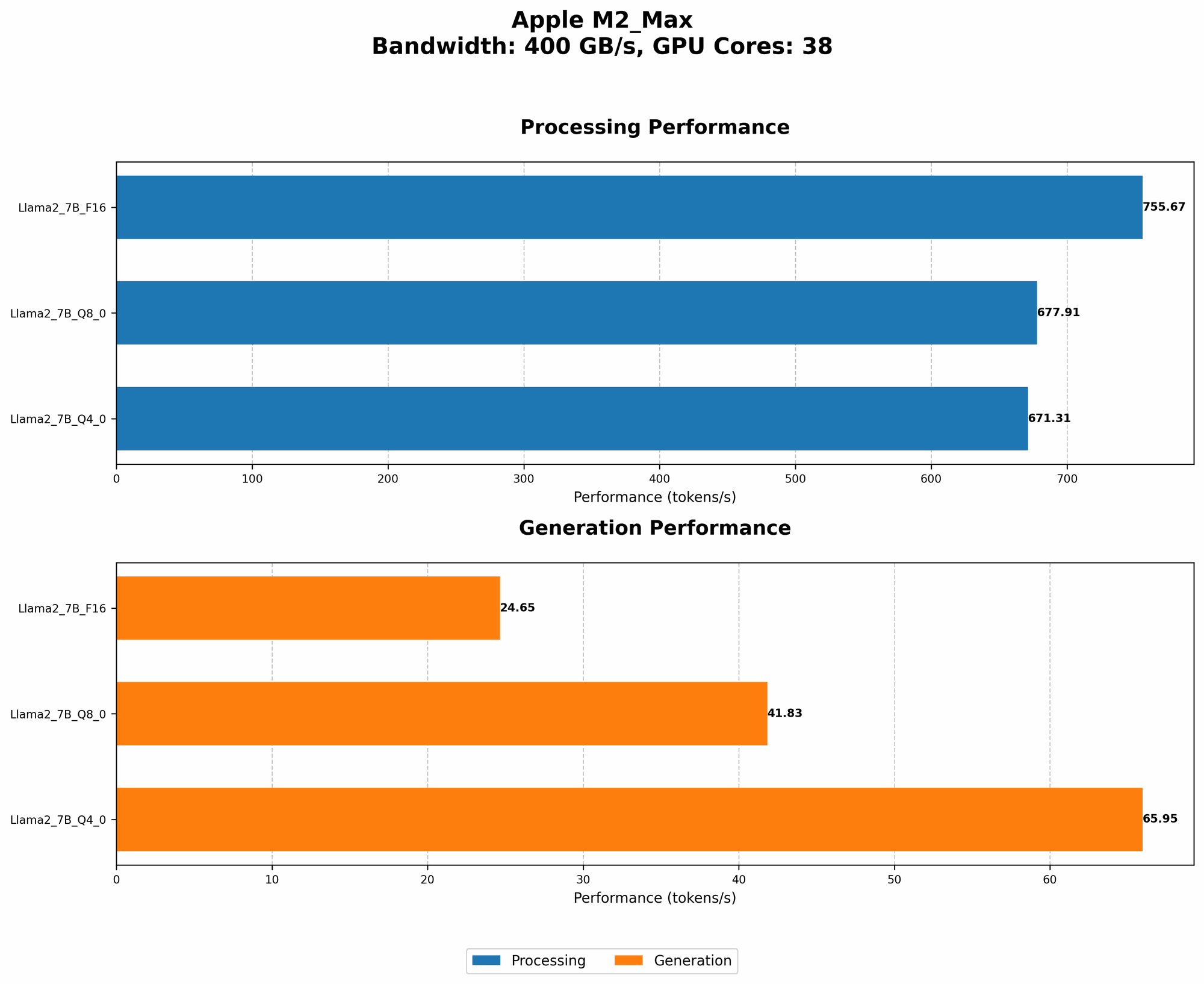
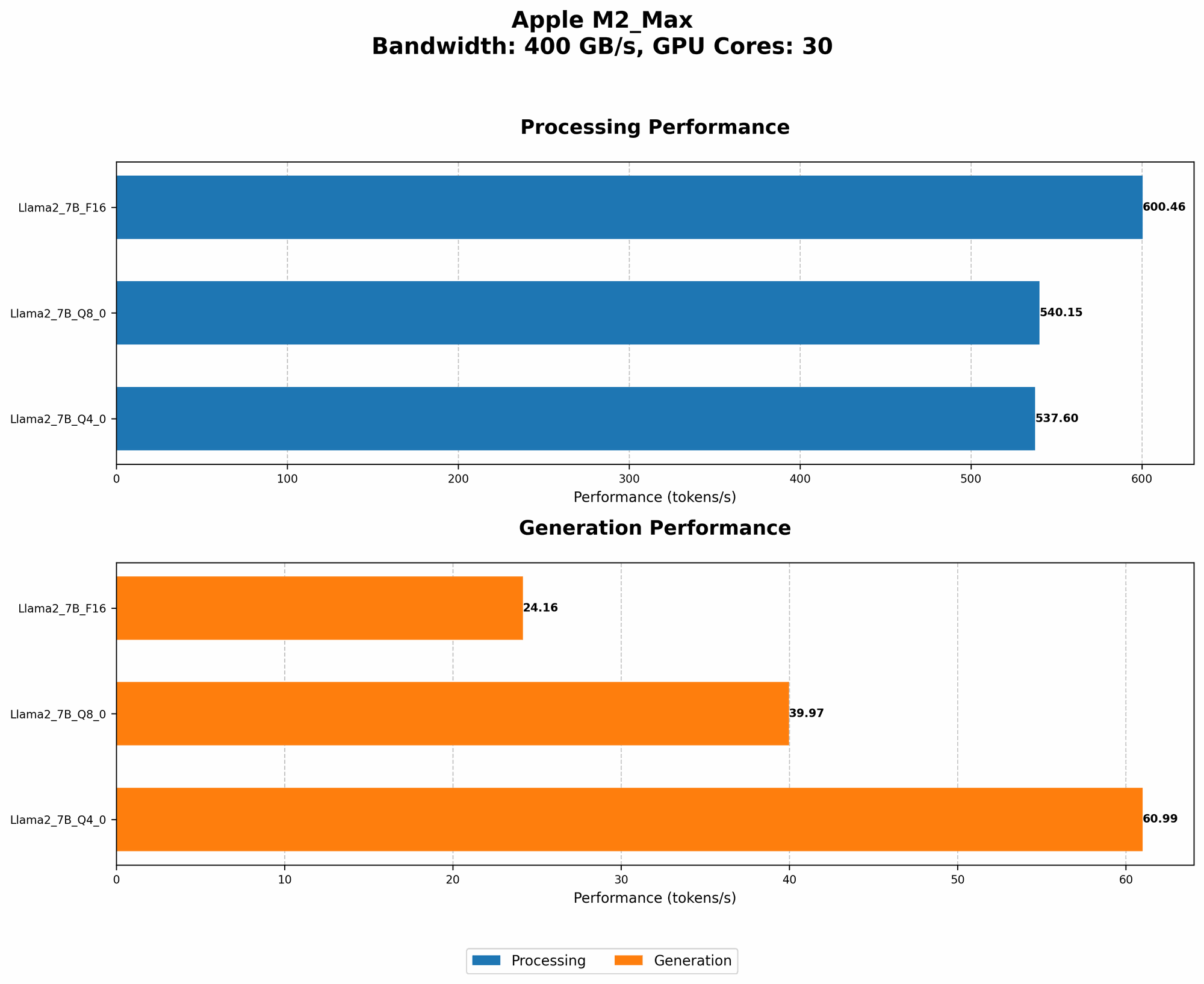
The M2 Max is a beast, boasting a whopping 38 GPU cores and a massive 96GB unified memory. But even with this incredible hardware, running complex LLMs like Llama 2 can still cause your M2 Max to sweat. Think of it like this: you're asking a tiny but powerful engine to pull a giant freight train – it might be able to do it, but it needs to work extra hard and might overheat in the process.
To keep your M2 Max cool and running smoothly, we need effective cooling solutions and smart approaches to optimize your AI workloads.
The Problem of Overheating: Why It Matters
Overheating is a serious issue for any computer, but it's especially important to understand when working with AI models. When your M2 Max overheats, it will throttle its performance to protect itself. This means that your LLM will run slower, potentially leading to inaccurate results, longer processing times, and even crashes.
Think of it like this: if you're trying to climb a mountain, but your body gets too hot, you'll slow down to cool off. Similarly, if your M2 Max overheats, it will slow down its processing speed to avoid damaging itself, leading to a less enjoyable and less efficient experience.
Understanding the Data: Decoding the M2 Max Performance
Let's take a closer look at how the M2 Max performs with different LLM models and configurations. We'll analyze the token generation speed in tokens per second (tokens/s) for different models and quantization techniques.
Key Terms:
- Quantization: A technique used to reduce the size of LLM models by representing numbers with fewer bits. This can improve performance on devices with limited memory and processing power, like the M2 Max. Think of it like compressing a large file to save space.
- F16: This uses 16-bit numbers, offering a balance between speed and accuracy.
- Q80: This uses 8-bit numbers, leading to the fastest performance but potentially sacrificing some accuracy.
- Q40: This uses 4-bit numbers, achieving the smallest model size and potentially leading to lower accuracy.
- Processing: This refers to the speed at which the model can process the input text.
- Generation: This refers to the speed at which the model can generate new text.
Data Table:
| Model | BW (GB/s) | Cores | Processing (F16) (tokens/s) | Generation (F16) (tokens/s) | Processing (Q8_0) (tokens/s) | Generation (Q8_0) (tokens/s) | Processing (Q4_0) (tokens/s) | Generation (Q4_0) (tokens/s) |
|---|---|---|---|---|---|---|---|---|
| Llama2_7B | 400 | 30 | 600.46 | 24.16 | 540.15 | 39.97 | 537.6 | 60.99 |
| Llama2_7B | 400 | 38 | 755.67 | 24.65 | 677.91 | 41.83 | 671.31 | 65.95 |
Note: We do not have data for other Llama models, such as the Llama 2 13B model, on the M2 Max.
What the Data Tells Us:
- The M2 Max can achieve impressive token generation speeds with Llama 2 7B, even using different quantization techniques.
- Generally, the Q8_0 quantization offers the best balance between speed and accuracy for Llama 2 7B on the M2 Max.
- You can significantly improve performance (both processing and generation speeds) with more GPU cores.
6 Ways to Prevent Overheating on Your M2 Max
Now that we understand the potential for overheating and have a sense of the M2 Max's performance capabilities, let's dive into practical solutions to keep your device cool and running smoothly.
1. Embrace Quantization: A Smaller Footprint, Faster Results
Lowering the precision of the computations can lead to a significant boost in performance. Using a smaller LLM model or utilizing quantization techniques like Q8_0 can significantly decrease the computational burden on your M2 Max, resulting in a cooler and more efficient workflow.
Q8_0: The Sweet Spot for Speed and Accuracy
Q8_0 quantization, as we saw in the data, offers a compelling combination of speed and accuracy. It can reduce model size by up to four times compared to full-precision models, leading to a significant reduction in memory usage and heat generation. It's a great way to strike a balance between performance and maintaining acceptable accuracy for your AI tasks.
2. Leverage Cooler Environments: Keep Your M2 Max Comfortable
The temperature outside your computer might be a bigger factor than you think! A cool room can make a noticeable difference in the heat generated by your M2 Max. Just like humans feel uncomfortable in extreme heat, so too does your M2 Max.
Tips for a Cooler Environment:
- Ventilate your workspace: Ensure good airflow and avoid placing your M2 Max in confined spaces.
- Use a cooling pad: A dedicated cooling pad can help to dissipate heat from the bottom of your Mac.
- Avoid direct sunlight: Direct sunlight can significantly increase the temperature of your computer, so keep it out of the sun.
3. Utilize the Power of Fans: Let the Air Flow Freely
Fans play a crucial role in cooling your M2 Max, so make sure they are working properly. A clean fan can help to maintain optimal airflow, preventing overheating.
Keeping Your Fans in Top Shape:
- Regular cleaning: Dust and debris can accumulate on your fans, slowing down airflow. Clean your fans regularly to ensure optimal performance.
- Check for obstructions: Make sure there are no objects blocking the airflow around your computer.
- Use a fan cleaner: A dedicated fan cleaner can help to remove dust and debris from your fans.
4. Optimize Your Software: Keep Things Running Smoothly
The software you use to run your LLMs can also have a significant impact on your M2 Max's temperature. Optimize your software settings to reduce resource consumption and minimize the chance of overheating.
Software Optimization Tips:
- Close unnecessary applications: Running multiple applications simultaneously can put a strain on your computer and contribute to heat generation. Close any unnecessary applications before running your LLM workloads.
- *Choose efficient software: * Different software programs have different resource demands. Choose lightweight and efficient software for running your LLM workloads.
- Enable energy saver mode: Enabling energy saver mode can help to reduce power consumption and heat generation.
5. Embrace the Cloud: Offload Your Processing Power
Sometimes, the best way to avoid overheating is to avoid running the LLM locally altogether! Cloud-based AI services provide a powerful and efficient alternative to running LLMs on your M2 Max.
Benefits of Cloud-Based AI Services:
- Scalability: Cloud services can scale to handle large workloads, ensuring smooth and efficient processing.
- No hardware concerns: You don't need to worry about overheating or other hardware limitations.
- Accessibility: Cloud services are accessible from anywhere with an internet connection.
6. Control Your Workload: Don't Push Your M2 Max Too Hard
While the M2 Max is incredibly powerful, it's not invincible. Be mindful of your workload and avoid pushing your computer beyond its limits. Give your M2 Max a break by scheduling tasks and taking advantage of the power of the cloud.
Managing Your Workload:
- Schedule tasks: Running tasks overnight or at off-peak hours can help to reduce strain on your M2 Max.
- Use the cloud for larger tasks: Large and complex tasks can be offloaded to cloud services, preventing strain on your M2 Max.
- Take breaks: Just like you need breaks, so does your M2 Max. Give it a rest to cool down and prevent overheating.
FAQ
What are some common signs of an overheating M2 Max?
- Slow performance: Your computer may seem sluggish or laggy.
- Fan noise: The fans may start to run louder as they work harder to cool the computer.
- Application crashes: Applications may crash or freeze due to overheating.
- Automatic shutdown: Your M2 Max may automatically shut down to prevent further damage.
What are some other ways to manage temperature during AI workloads?
- Using external cooling solutions: Using a fan, a cooling pad, or a dedicated cooling system can help dissipate heat.
- Adjusting the fan speed: Some devices offer options to adjust the fan speed manually, allowing you to optimize cooling based on your needs.
- Utilizing thermal paste: Applying thermal paste to the CPU can improve heat transfer and prevent overheating.
Is it safe to run LLMs on the M2 Max?
Yes, it is generally safe to run LLMs on the M2 Max, but it's important to follow the recommendations outlined in this article to prevent overheating.
Keywords
M2 Max, LLM, Llama 2, overheating, thermal throttling, performance, tokens/s, quantization, F16, Q80, Q40, cloud, cooling, fan, software, workload, AI, GPU.