6 Ways to Prevent Overheating on Apple M1 Pro During AI Workloads

Introduction
In the world of large language models (LLMs), having a powerful machine is key. For developers and enthusiasts exploring local LLM models, the Apple M1 Pro chip offers a tempting blend of processing power and energy efficiency. However, running these demanding models can push your M1 Pro to its limits, potentially leading to overheating and performance throttling.
This article will guide you through 6 practical ways to prevent overheating on your Apple M1 Pro while working with LLMs, ensuring smoother and more efficient AI workloads. We'll explore the performance of various LLM models and quantization methods, along with their impact on thermal performance, to help you optimize your setup for optimal results.
Apple M1 Pro Token Speed Generation: Factoring in the Heat
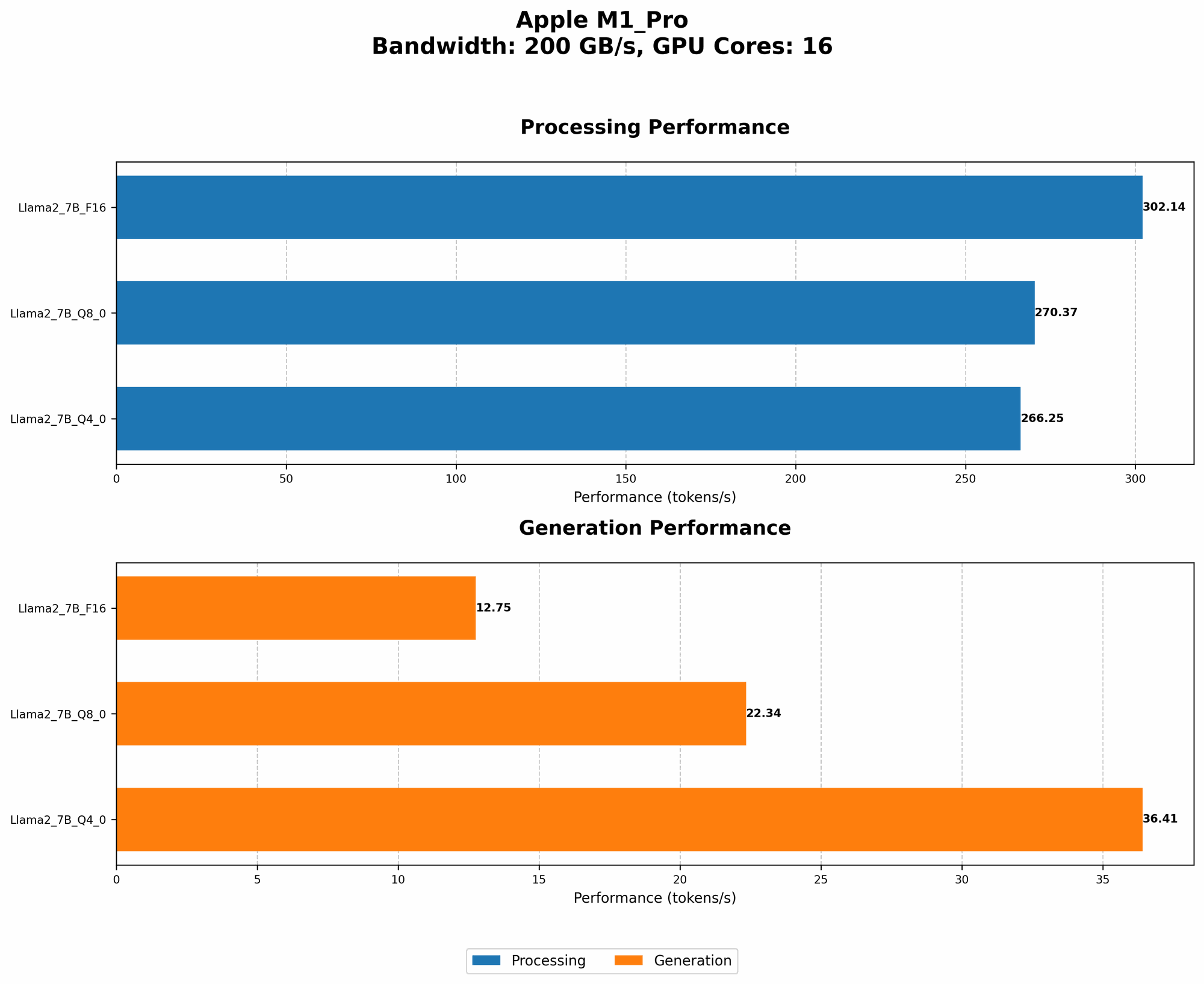
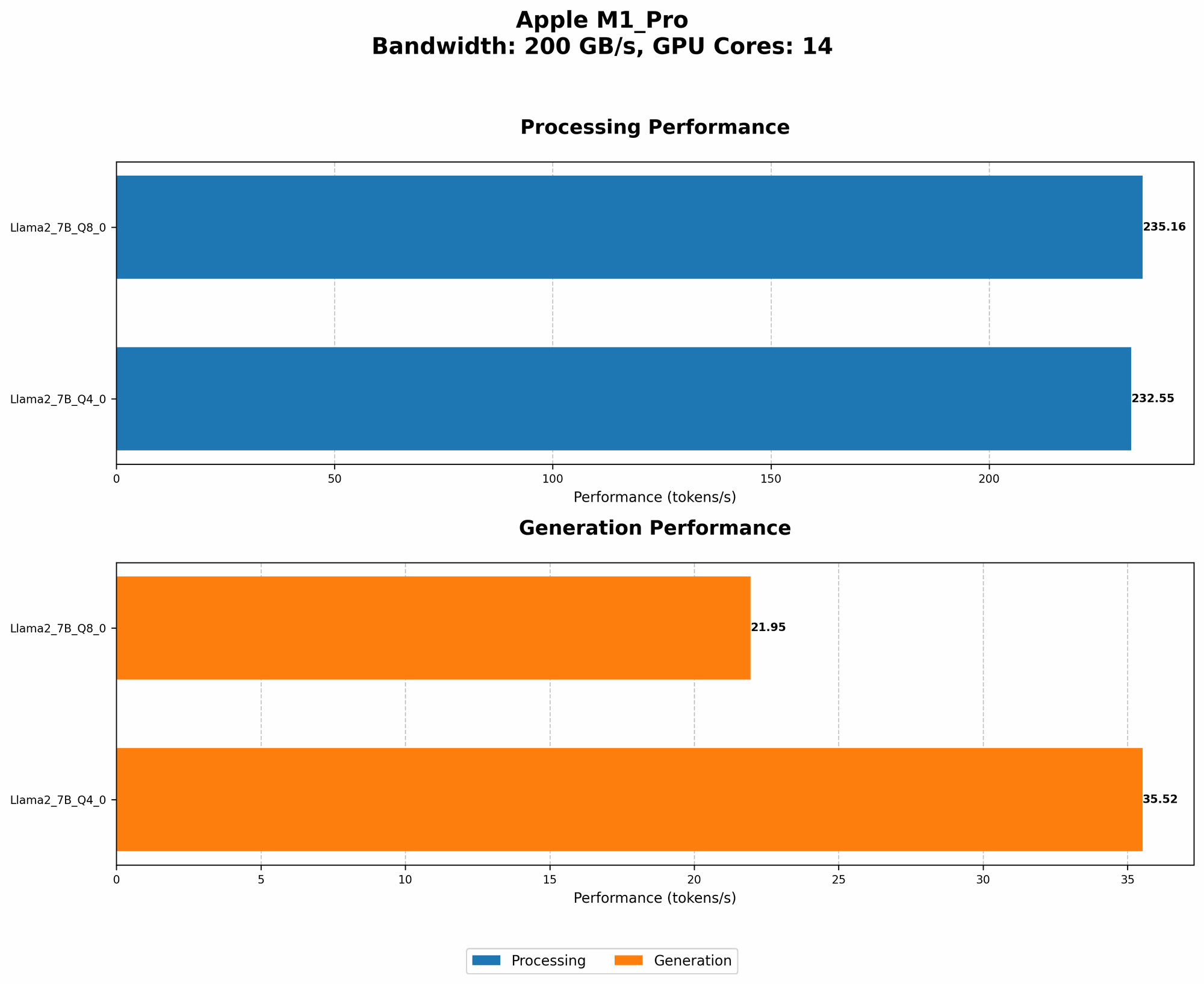
The Apple M1 Pro chip boasts impressive performance, but its capabilities aren't limitless. When running large language models, especially those with billions of parameters, the chip can get pretty hot. Think of it like a marathon runner: they can sprint for a short time, but sustained high-intensity running can lead to exhaustion. Similarly, your M1 Pro can handle heavy workloads for short bursts, but prolonged intensive AI tasks can cause it to overheat.
Understanding the Impact of Overheating
Overheating can manifest in several ways:
- Performance Throttling: The M1 Pro chip will automatically reduce its clock speed to prevent damage from excessive heat. This leads to slower processing and increased latency, making your LLM runs sluggish.
- System Instability: Extreme heat can cause crashes or unexpected behavior, interrupting your work and potentially affecting your progress.
- Reduced Battery Life: If you're using your M1 Pro on battery power, overheating will drain the battery much faster.
6 Practical Tips to Keep Your M1 Pro Cool
1. Choosing the Right LLM Model: Smaller is Cooler
LLMs come in various sizes, with the number of parameters often dictating their complexity and computational demands. Smaller models, while less powerful, can be significantly more efficient on your M1 Pro.
Example: Llama 7B vs. Llama 70B
Let's compare two popular models using their token generation speed as a proxy for resource usage:
| Model | Token Speed (Tokens/second) | Notes |
|---|---|---|
| Llama 7B (Q8_0) | 235.16 | Lower resource usage |
| Llama 70B (F16) | (Data Not Available) | Higher resource usage |
As you can see, the smaller Llama 7B model, even with quantization (a technique to reduce model size and improve performance), uses significantly less compute power compared to the larger Llama 70B model. While the larger model may offer more advanced capabilities, it comes with a heavy price tag on your M1 Pro's thermal capacity.
Key takeaway: Starting with smaller LLM models can help significantly reduce the strain on your M1 Pro, keeping it cool and running efficiently.
2. The Power of Quantization: Making Models Lighter
Quantization is the process of reducing the precision of numbers used in an LLM. Imagine it as swapping high-resolution images for lower-resolution ones. While you might lose some detail, you save a lot of storage space and bandwidth. Similarly, quantizing an LLM reduces its memory footprint and computational demands, making it less resource-intensive.
Quantization Options & Performance:
- Q8_0: Uses 8-bit integers for weights, offering significant reduction in memory usage and processing requirements compared to F16 (half-precision floating-point).
- Q4_0: Even further reduced precision, using 4-bit integers. While offering even greater efficiency, it can potentially lead to some accuracy loss.
Example:
| Model | Quantization | Token Speed (Tokens/second) |
|---|---|---|
| Llama 7B | Q8_0 | 235.16 |
| Llama 7B | Q4_0 | 232.55 |
Key takeaway: Quantization is a powerful tool to optimize your M1 Pro's performance and thermal efficiency. Experiment with different levels of quantization to find the right balance between performance and model accuracy.
3. Utilizing the Right Processing Techniques
Many libraries and tools provide various processing techniques for LLMs, each with its own advantages and disadvantages in terms of resource usage and performance. Here's a quick breakdown:
- FP16: Half-precision floating-point. Provides good performance, but consumes more resources than quantized options.
- Q8_0: Uses 8-bit integers for weights, offering a good balance of performance and efficiency.
- Q4_0: Uses 4-bit integers for weights, requiring less memory and processing power but potentially leading to some accuracy loss.
Example:
| Model | Processing Technique | Token Speed (Tokens/second) |
|---|---|---|
| Llama 7B | F16 | (Data Not Available) |
| Llama 7B | Q8_0 | 235.16 |
| Llama 7B | Q4_0 | 232.55 |
Key takeaway: Select the processing technique that best suits your needs and your M1 Pro's thermal tolerance.
4. Managing Your Workspace: Clearing the Clutter
A cluttered workspace can lead to slower processing and increased heat.
- Close unnecessary applications: Before running your LLM, close any applications you're not using. This frees up system resources and reduces the overall strain on your M1 Pro.
- Manage background processes: Check your Activity Monitor for any resource-hungry processes running in the background and close them if they're not essential.
Key takeaway: Keep your M1 Pro's workspace clean to ensure smooth and efficient operation, preventing overheating.
5. Leveraging the Power of External Cooling: Helping Your M1 Pro Breathe Easy
Thermal pads and heat sinks can further improve your M1 Pro's ability to dissipate heat.
- Thermal pads: These conductive materials fill the gaps between the chip and cooling solution, enhancing heat transfer.
- Heat sinks: These fins increase the surface area for heat dissipation, allowing the heat to radiate away more efficiently.
While these solutions can be effective, remember that they add an extra layer of complexity to your setup. If you're comfortable with hardware modifications, they can provide an added boost in thermal management.
Key takeaway: Explore external cooling solutions to enhance your M1 Pro's thermal capacity, but proceed with caution if you're unfamiliar with hardware modifications.
6. Embrace the Power of Patience: Giving Your M1 Pro a Break
Just like humans need time to cool down after strenuous activity, your M1 Pro needs periodic breaks.
- Take advantage of idle periods: If your LLM run involves long waiting times, use these opportunities to pause or even shut down your M1 Pro. This allows the chip to cool down and prevent overheating.
- Run your LLMs in batches: Instead of running a continuous workload, break your AI tasks into manageable batches with short pauses in between. This distributes the thermal load, allowing your M1 Pro to recover.
Key takeaway: Give your M1 Pro regular breaks to prevent overheating and ensure long-term stability.
FAQs About M1 Pro and LLM Overheating
1. Is my M1 Pro too hot?
You can monitor your M1 Pro's temperature using the Activity Monitor app in macOS. If the temperature consistently reaches 90°C or above, it's a sign that your chip is under significant stress.
2. Will overheating damage my M1 Pro?
While the M1 Pro is designed to withstand high temperatures, prolonged and excessive heat can lead to reduced performance and shorten its lifespan. It's best to keep the temperature below 90°C for optimal performance and longevity.
3. Can I use a cooling pad for my M1 Pro?
Cooling pads can help improve airflow and reduce the overall temperature of your system, but they might not have a significant impact on the M1 Pro's internal temperature.
4. Are there any software solutions for M1 Pro thermal management?
While there are no dedicated software solutions specifically for M1 Pro thermal management, you can explore options that optimize system resource usage and close unnecessary background processes.
5. What can I do to prevent overheating while using my M1 Pro for other tasks?
The techniques discussed in this article, such as managing your workspace and taking breaks, can be applied to any task that demands significant processing power from your M1 Pro.
Keywords
Apple M1 Pro, LLM, overheating, thermal management, quantization, Llama 7B, AI, token generation, performance, efficiency, cooling, workspace, processing techniques, FP16, Q80, Q40, Activity Monitor, cooling pad