6 Ways to Prevent Overheating on Apple M1 During AI Workloads
Introduction
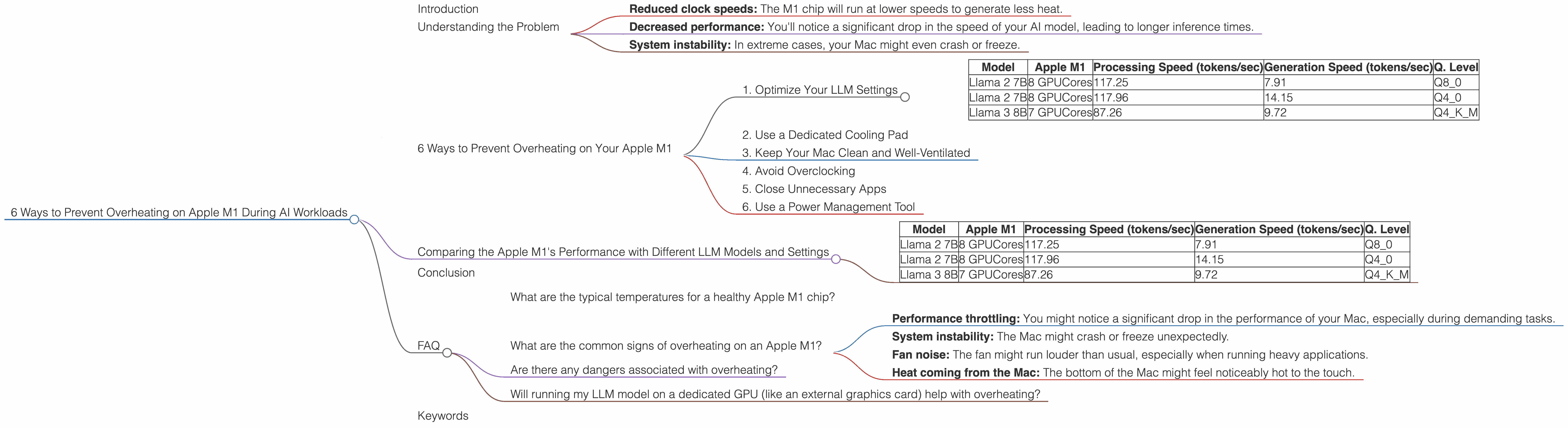
The Apple M1 chip is a powerful piece of silicon that can handle many challenging tasks, including running large language models (LLMs) locally. However, these AI workloads can be quite demanding, and they can potentially cause your M1 chip to overheat. This can lead to performance throttling, which can significantly impact your AI workflow.
In this article, we'll explore the issue of overheating on the Apple M1 specifically during AI workloads, and provide practical tips to keep your chip cool and your LLMs running smoothly.
Understanding the Problem
The Apple M1 chip is designed to be very efficient and power-saving, but running large language models can push its limits. These models typically require a lot of computational power and can generate a significant amount of heat. If the heat isn't dissipated quickly enough, the M1 chip will start to throttle its performance to protect itself from damage.
This throttling can manifest in various ways, including:
- Reduced clock speeds: The M1 chip will run at lower speeds to generate less heat.
- Decreased performance: You'll notice a significant drop in the speed of your AI model, leading to longer inference times.
- System instability: In extreme cases, your Mac might even crash or freeze.
6 Ways to Prevent Overheating on Your Apple M1
Now that you understand the issue, let's delve into practical solutions to keep your M1 cool and your AI projects running smoothly.
1. Optimize Your LLM Settings
One of the most effective ways to prevent overheating is to optimize the settings of your LLM. This includes:
Reducing the model size: Smaller models like Llama 2 7B (7 billion parameters) require less computational power than larger ones like Llama 3 70B (70 billion parameters), generating less heat.
Quantization: Quantization is a technique that reduces the size of the model by using fewer bits to represent the weights. This can result in a significant reduction in memory usage and computational overhead, leading to less heat generation. Think of it as using a color palette with fewer colors instead of the entire spectrum. You can still create a recognizable image, but with less data.
Data:
| Model | Apple M1 | Processing Speed (tokens/sec) | Generation Speed (tokens/sec) | Q. Level |
|---|---|---|---|---|
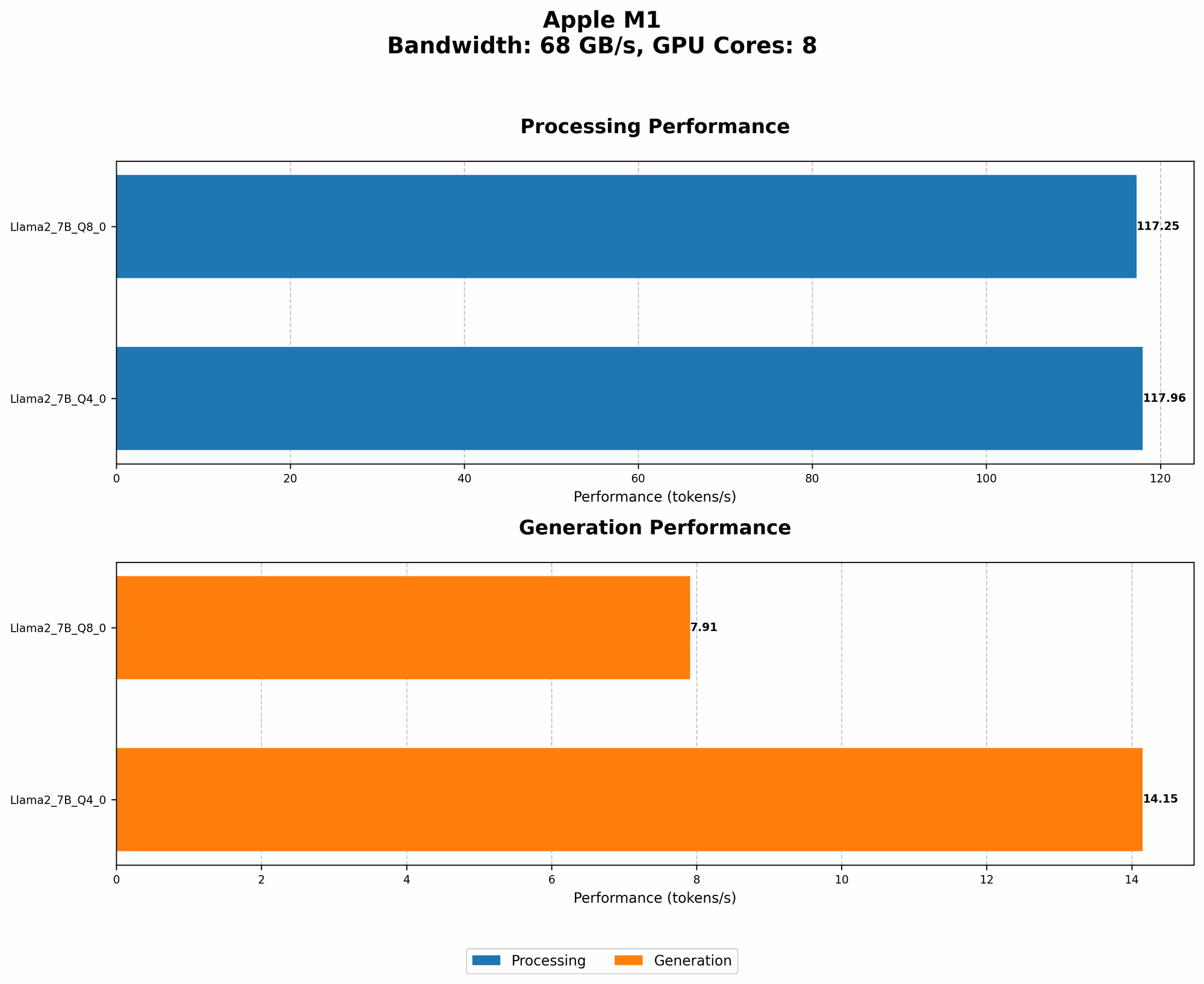
| Llama 2 7B | 8 GPUCores | 117.25 | 7.91 | Q8_0 |
| Llama 2 7B | 8 GPUCores | 117.96 | 14.15 | Q4_0 |
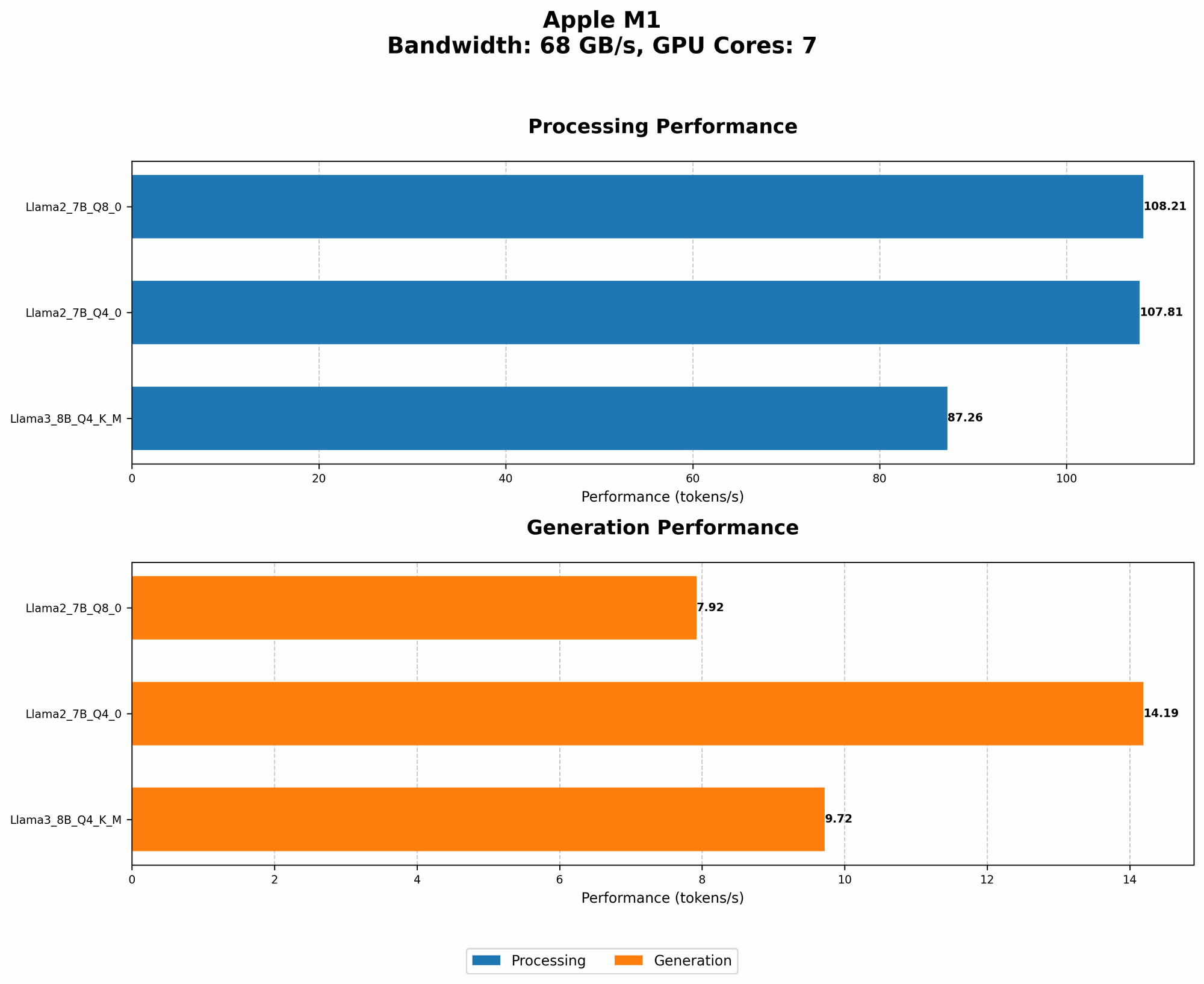
| Llama 3 8B | 7 GPUCores | 87.26 | 9.72 | Q4KM |
Data Explanation: The data illustrates how different quantization levels affect the speed of the model. For Llama 2 7B, running the model with Q80 quantization results in a faster processing speed of 117.25 tokens/sec compared to 117.96 tokens/sec with Q40. However, generation speed is slower with Q80 at 7.91 tokens/sec compared to 14.15 tokens/sec with Q40.
- Lowering the batch size: The batch size determines how many tokens are processed at once. Lowering the batch size reduces the computational load and thus the heat generated. It's like cooking smaller batches instead of trying to cook everything at once.
Note: Some LLM models and devices might have specific and optimal settings. Consult the documentation for your specific model and device for recommended settings.
2. Use a Dedicated Cooling Pad
A cooling pad is an excellent investment if you frequently run AI workloads. These pads have fans that circulate air under your laptop, helping to dissipate heat more efficiently. It's like giving your M1 chip a mini-wind tunnel, keeping it cool and focused. Just imagine your M1 chip feeling refreshed after a nice, cool breeze.
3. Keep Your Mac Clean and Well-Ventilated
Dust accumulation can obstruct airflow and trap heat within your Mac. Regularly clean your Mac's air vents and fan blades to ensure efficient airflow. Also, make sure your Mac is placed on a flat, stable surface with ample airflow around it, so it can breathe freely, like a marathon runner needing a fresh breath of air.
4. Avoid Overclocking
While overclocking can boost performance, it also increases heat production. Avoid overclocking your M1 chip when running LLM models. Since a marathon runner needs a strategic pace to avoid exhaustion, your M1 chip needs a strategic speed to avoid overheating.
5. Close Unnecessary Apps
Running multiple apps simultaneously can increase the load on your M1 chip, leading to higher temperatures. Close any unnecessary apps while running your AI workloads. Think of it as a multitasking sprinter needing to focus on one race at a time.
6. Use a Power Management Tool
Power management tools like "TinkerTool" or "Better Battery" can allow you to adjust various settings that can impact your M1 chip's temperature. These tools might provide options to limit the power consumption, allowing your chip to run cooler. It's like giving your M1 chip a "power nap" to conserve energy and reduce heat generation.
Comparing the Apple M1's Performance with Different LLM Models and Settings
Now let's dive a little deeper and compare the Apple M1's performance with different LLM models and settings, using the provided data.
Important: Not all data combinations were available for this comparison. For example, no data is available for Llama 2 or Llama 3 models running with F16 precision on the Apple M1. This highlights that the data might not be complete, and further research is needed for a comprehensive comparison.
Data:
| Model | Apple M1 | Processing Speed (tokens/sec) | Generation Speed (tokens/sec) | Q. Level |
|---|---|---|---|---|
| Llama 2 7B | 8 GPUCores | 117.25 | 7.91 | Q8_0 |
| Llama 2 7B | 8 GPUCores | 117.96 | 14.15 | Q4_0 |
| Llama 3 8B | 7 GPUCores | 87.26 | 9.72 | Q4KM |
Observations:
Llama 2 7B vs. Llama 3 8B: The Llama 2 7B model, running with Q80 quantization, has a significantly faster processing speed (117.25 tokens/sec) compared to the Llama 3 8B model running with Q4KM quantization (87.26 tokens/sec). However, the Llama 3 8B model has a faster generation speed (9.72 tokens/sec) compared to the Llama 2 7B model using Q80 quantization (7.91 tokens/sec) and Q4_0 quantization (14.15 tokens/sec).
Impact of Quantization: Comparing the performance of the Llama 2 7B model with Q80 and Q40 quantization levels, we see that the processing speed is almost identical at 117.25 tokens/sec and 117.96 tokens/sec, respectively. However, the generation speed is significantly faster with Q40 (14.15 tokens/sec) compared to Q80 (7.91 tokens/sec). This highlights how quantization levels can impact performance, but you need to consider the trade-offs between processing and generation speed to choose the right quantization level for your workload.
Remember: These are just a few data points. It's crucial to test your specific LLM and device combination with different settings to find the optimal configuration for your needs.
Conclusion
Dealing with overheating on your Apple M1 during AI workloads can be frustrating, but it's possible to keep your chip cool and your AI model running smoothly with a little effort. By optimizing your settings, using a cooling pad, keeping your Mac clean, and following the other tips we've discussed, you'll be able to prevent overheating and enjoy the full potential of your M1 chip.
Remember, a well-maintained and optimized system can go a long way. Just like a well-tuned engine, your M1 chip can deliver optimal performance when it's cool and running smoothly.
FAQ
What are the typical temperatures for a healthy Apple M1 chip?
The ideal temperature for a healthy Apple M1 chip is around 70-80°C. However, this range can vary slightly depending on the workload and ambient temperature. If the temperature consistently goes above 100°C, you might need to consider taking steps to prevent overheating.
What are the common signs of overheating on an Apple M1?
Common signs of overheating include:
- Performance throttling: You might notice a significant drop in the performance of your Mac, especially during demanding tasks.
- System instability: The Mac might crash or freeze unexpectedly.
- Fan noise: The fan might run louder than usual, especially when running heavy applications.
- Heat coming from the Mac: The bottom of the Mac might feel noticeably hot to the touch.
Are there any dangers associated with overheating?
Yes, excessive overheating can potentially damage your M1 chip. While the chip has safeguards to prevent permanent damage, prolonged exposure to high temperatures can reduce its lifespan.
Will running my LLM model on a dedicated GPU (like an external graphics card) help with overheating?
Yes, running your LLM model on a dedicated GPU can help with overheating, as it takes a part of the workload from the M1 chip, reducing the overall heat generated within your Mac.
Keywords
Apple M1, LLM, large language model, overheating, temperature, performance, throttling, quantization, cooling pad, ventilation, power management, Llama 2, Llama 3, GPU, tokens/second, processing speed, generation speed, settings, optimization,