5 Ways to Prevent Overheating on Apple M3 Pro During AI Workloads
Introduction
Running large language models (LLMs) locally can be a great way to experiment with these powerful AI systems without relying on cloud services. However, pushing your Apple M3 Pro to its limits with computationally intensive LLM workloads can lead to overheating. This article will explore practical strategies to prevent overheating and optimize your M3 Pro for smooth AI performance.
Imagine trying to run a marathon on a sweltering summer day without proper hydration. That's kind of what happens to your M3 Pro when you're running demanding LLMs—it gets hot, and if it gets too hot, it can throttle performance, leading to sluggish responses and even crashes. We'll guide you through strategies to keep your LLM marathon running smoothly, ensuring your M3 Pro stays cool and efficient.
Understanding AI Workloads and Overheating
Before diving into solutions, let's first understand why AI workloads tend to heat up your M3 Pro. LLMs, particularly the larger ones, require massive amounts of processing power. This intensity puts a strain on your M3 Pro's powerful GPU and CPU, causing them to generate heat as they work tirelessly to process and generate information.
Think of it like this: Imagine a marathon runner who's constantly sprinting—their muscles generate a lot of heat. Similarly, your M3 Pro's processor is sprinting to process complex AI models, generating significant heat. This heat can build up if not managed properly, leading to overheating and performance issues.
5 Ways to Prevent Overheating on Your Apple M3 Pro During AI Workloads
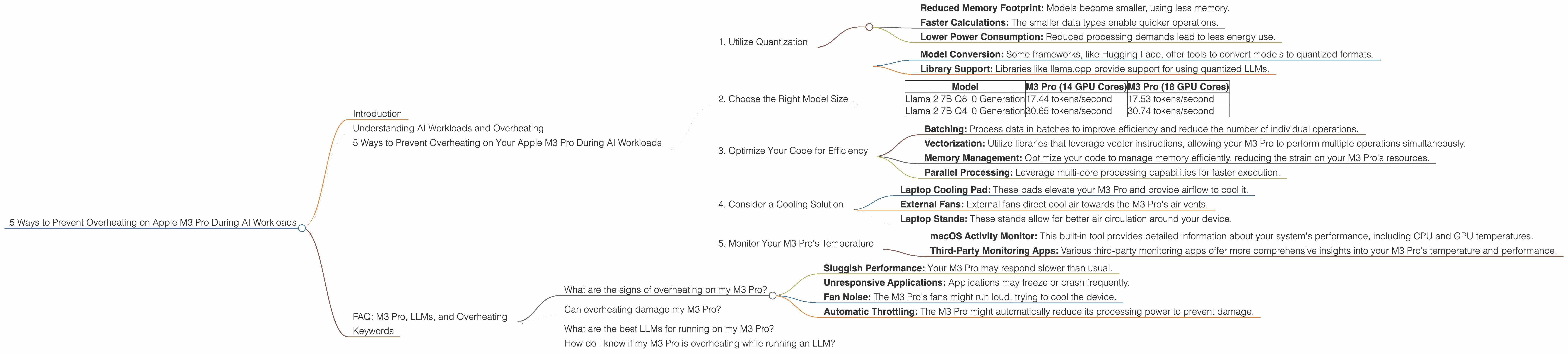
1. Utilize Quantization
Quantization is a technique used to reduce the size of AI models, making them more efficient and less computationally demanding. Instead of using 32-bit floating-point numbers (FP32) to represent model parameters, quantization uses smaller data types like 8-bit integers (INT8) or even 4-bit integers (INT4). This simplification allows for faster processing and reduces the computational load on your M3 Pro.
Think of it like using a simpler language to communicate. You can convey a lot of information using a smaller set of words. Similarly, with quantization, you can use fewer bits to represent the complex information stored in your LLM, while maintaining a high level of accuracy.
Benefits:
- Reduced Memory Footprint: Models become smaller, using less memory.
- Faster Calculations: The smaller data types enable quicker operations.
- Lower Power Consumption: Reduced processing demands lead to less energy use.
How to Apply Quantization:
- Model Conversion: Some frameworks, like Hugging Face, offer tools to convert models to quantized formats.
- Library Support: Libraries like llama.cpp provide support for using quantized LLMs.
2. Choose the Right Model Size
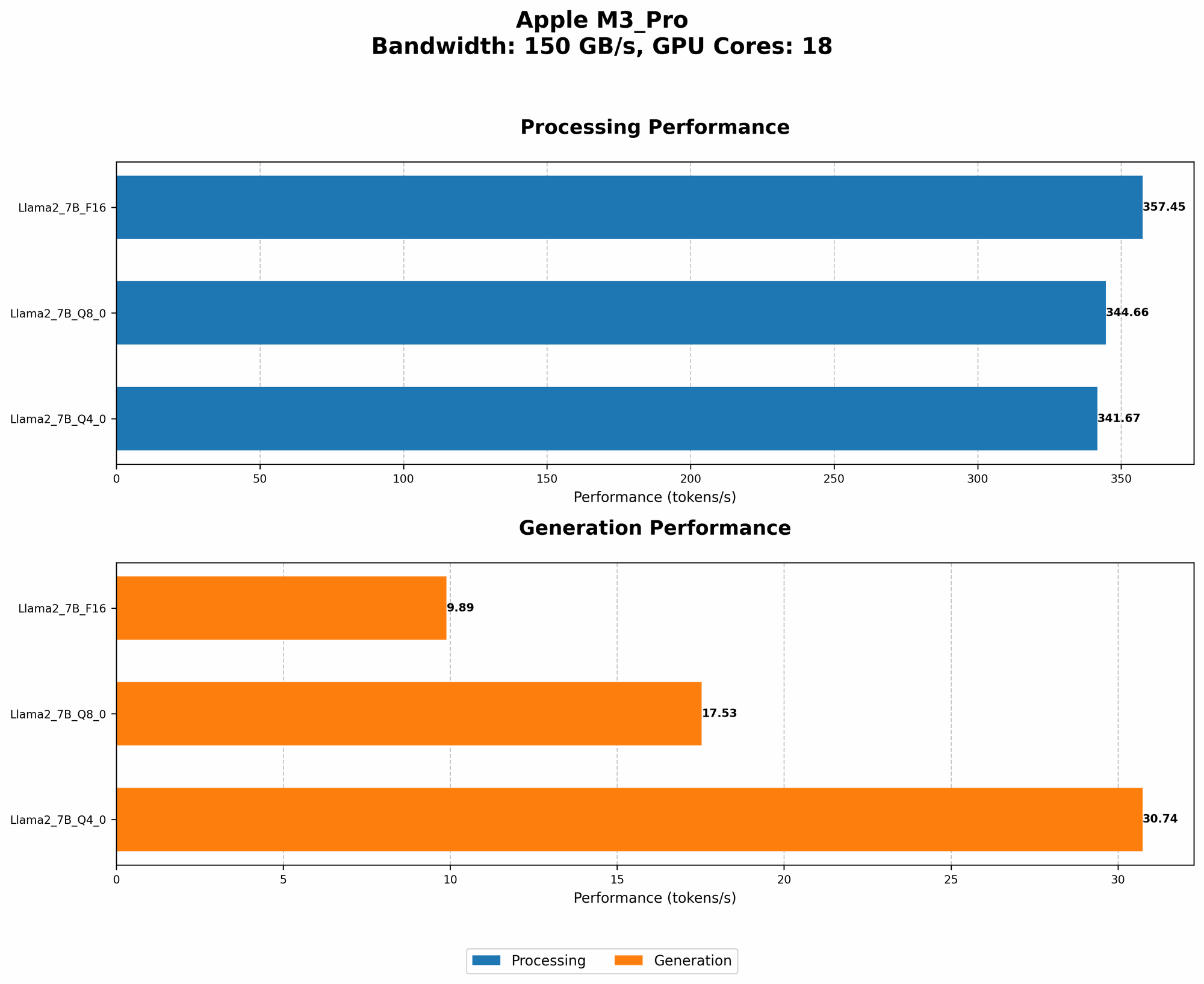
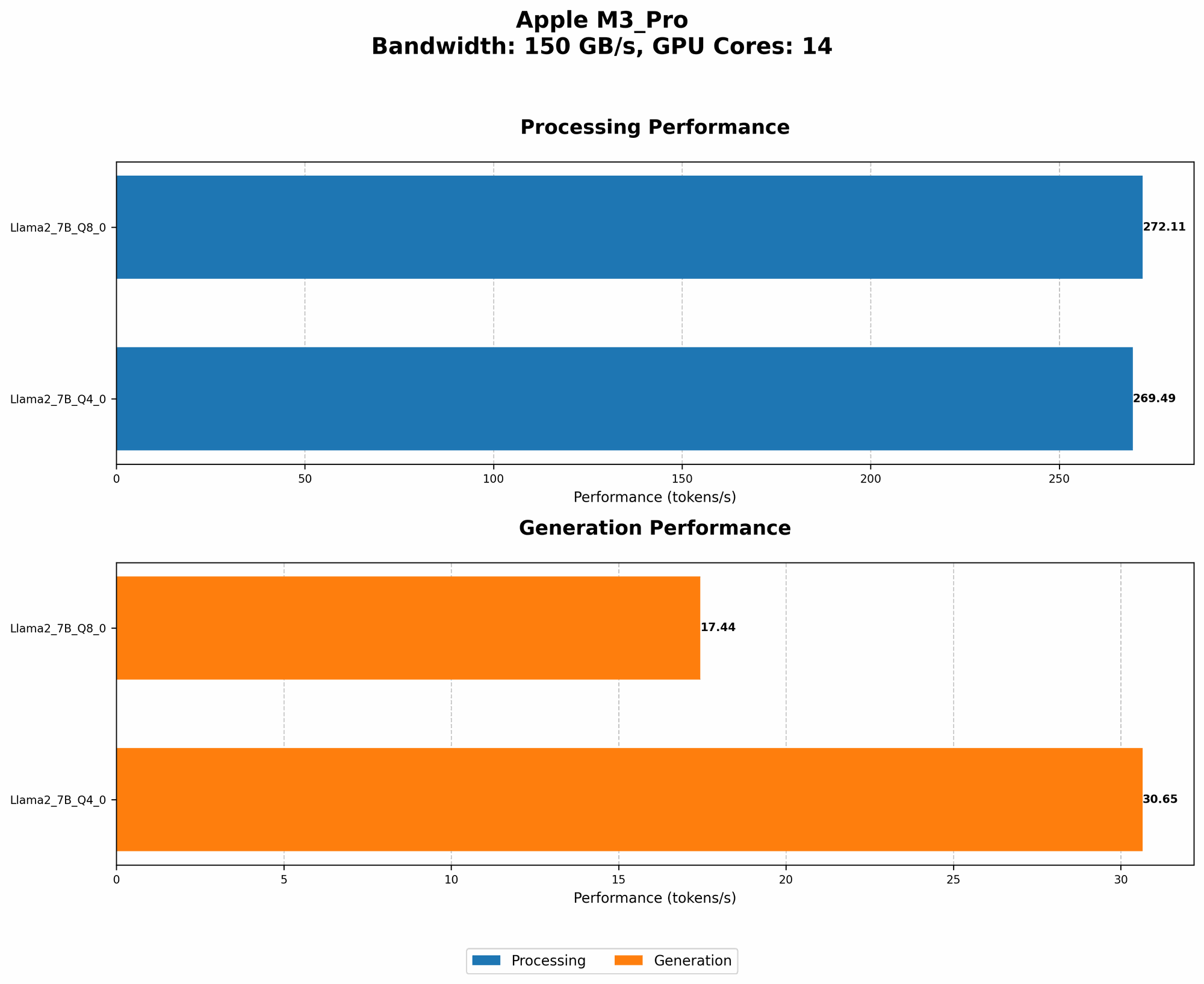
Choosing the right model size for your needs is crucial. While larger models boast impressive capabilities, they also require more computational resources. Smaller models, like Llama 7B, are more manageable and can be run efficiently on your M3 Pro.
Data Example:
| Model | M3 Pro (14 GPU Cores) | M3 Pro (18 GPU Cores) |
|---|---|---|
| Llama 2 7B Q8_0 Generation | 17.44 tokens/second | 17.53 tokens/second |
| Llama 2 7B Q4_0 Generation | 30.65 tokens/second | 30.74 tokens/second |
As you can see, even with different GPU core configurations, the performance of Llama 2 7B (quantized) on the M3 Pro is quite consistent.
Recommendation:
Start with a smaller LLM and gradually increase the model size as needed. By leveraging quantization techniques, you can still utilize larger models while maintaining performance and keeping your M3 Pro from overheating.
3. Optimize Your Code for Efficiency
Well-optimized code is essential for smooth LLM performance. Here are some strategies to optimize your code:
- Batching: Process data in batches to improve efficiency and reduce the number of individual operations.
- Vectorization: Utilize libraries that leverage vector instructions, allowing your M3 Pro to perform multiple operations simultaneously.
- Memory Management: Optimize your code to manage memory efficiently, reducing the strain on your M3 Pro's resources.
- Parallel Processing: Leverage multi-core processing capabilities for faster execution.
By implementing these optimization techniques, you can reduce the computational load on your M3 Pro, minimizing overheating and improving overall performance.
4. Consider a Cooling Solution
If you're still experiencing overheating issues, consider a cooling solution. There are several options available, including:
- Laptop Cooling Pad: These pads elevate your M3 Pro and provide airflow to cool it.
- External Fans: External fans direct cool air towards the M3 Pro's air vents.
- Laptop Stands: These stands allow for better air circulation around your device.
Choose a cooling solution that fits your needs and budget. Investing in a cooling solution can significantly reduce your M3 Pro's operating temperature, allowing for more stable and efficient performance when running AI workloads.
5. Monitor Your M3 Pro's Temperature
Regularly monitoring your M3 Pro's temperature is crucial. There are several tools available to help you track its temperature, including:
- macOS Activity Monitor: This built-in tool provides detailed information about your system's performance, including CPU and GPU temperatures.
- Third-Party Monitoring Apps: Various third-party monitoring apps offer more comprehensive insights into your M3 Pro's temperature and performance.
Ideally, your M3 Pro's core temperature should stay below 90°C. If it consistently exceeds this threshold, you may need to apply some of the strategies mentioned above to manage overheating.
FAQ: M3 Pro, LLMs, and Overheating
What are the signs of overheating on my M3 Pro?
Overheating can manifest in various ways:
- Sluggish Performance: Your M3 Pro may respond slower than usual.
- Unresponsive Applications: Applications may freeze or crash frequently.
- Fan Noise: The M3 Pro's fans might run loud, trying to cool the device.
- Automatic Throttling: The M3 Pro might automatically reduce its processing power to prevent damage.
Can overheating damage my M3 Pro?
Yes, prolonged overheating can damage your M3 Pro's components, reducing its lifespan.
What are the best LLMs for running on my M3 Pro?
LLMs like Llama 2 7B and 13B are known to run efficiently on the M3 Pro, especially with quantization.
How do I know if my M3 Pro is overheating while running an LLM?
Use the macOS Activity Monitor or third-party monitoring apps to check the CPU and GPU temperatures.
Keywords
Apple M3 Pro, LLM, Large Language Model, Overheating, AI Workloads, Quantization, Llama 2, Model Size, Code Optimization, Cooling Solution, Temperature Monitoring, Tokens per Second, GPU Cores, Performance Optimization